

Blur Faces Free Online — Automatic AI, No Watermark (2026)

Blur Faces Free Online — Automatic AI, No Watermark (2026)
Privacy is not optional when you publish video. If you film in public, interview guests, or share street-level B-roll, you need a reliable way to blur faces free online before upload—without spending hours on masks. The problem is that many "free" tools hide limits behind paywalls, add watermarks, or force manual frame-by-frame work. In this guide, we tested the most popular options to help you pick the right workflow for YouTube, TikTok, and professional edits. You will see why automatic face blurring with Blurit.app is the top choice for creators, and where a standard free face blur tool might still be enough.
Want to skip straight to the tool? Blur faces online free in your browser — automatic detection, no watermark.
- ✓ Why Blurit.app is the #1 choice for automatic video redaction
- ✓ Honest pros/cons for iloveimg, Canva, Watermarkly, DaVinci Resolve, and Shotcut
- ✓ A clear comparison table: price, AI, speed, quality, batch, privacy
- ✓ Step-by-step: how to blur faces with iloveimg for still images
- ✓ FAQ for creators (legal basics, mobile, Premiere Pro, and free trials)
Whether you need to blur video faces free online for a single clip or build a repeatable workflow, this page mirrors the structure of our AI face blur service guide: fast scan, deep sections, then a practical FAQ. For full video automation, see also how to blur faces in video with AI and best blur video apps.
Why You Need to Blur Faces
Why blur faces in video is no longer a niche question. Regulators treat recognizable faces as personal data in many jurisdictions; platforms also enforce privacy rules that can lead to takedowns or monetization issues. Ethical publishing is part of the story too: bystanders, minors, and employees in the background did not necessarily consent to appear in your edit. That is why privacy in video editing is now a checklist item alongside audio levels and color correction.
Journalists, educators, and event videographers face the same core constraint: you must reduce identifiability without destroying the story. Sometimes that means a tight mosaic; sometimes a softer blur is enough for background faces. The important part is consistency—audiences forgive imperfect color grades far more easily than accidental doxxing.
Creators often discover the gap at the worst moment—right before publish. A blur faces online free workflow helps when budget is zero, but you should still choose tools that match your format (image vs video) and your risk level (quick social clip vs compliance-heavy footage).
Top Tools to Blur Faces Online Ranked
Below, we rank the best options based on speed, accuracy, and ease of use. We focus on how each tool behaves for creators who need to blur faces quickly—no fluff, no fake star ratings.

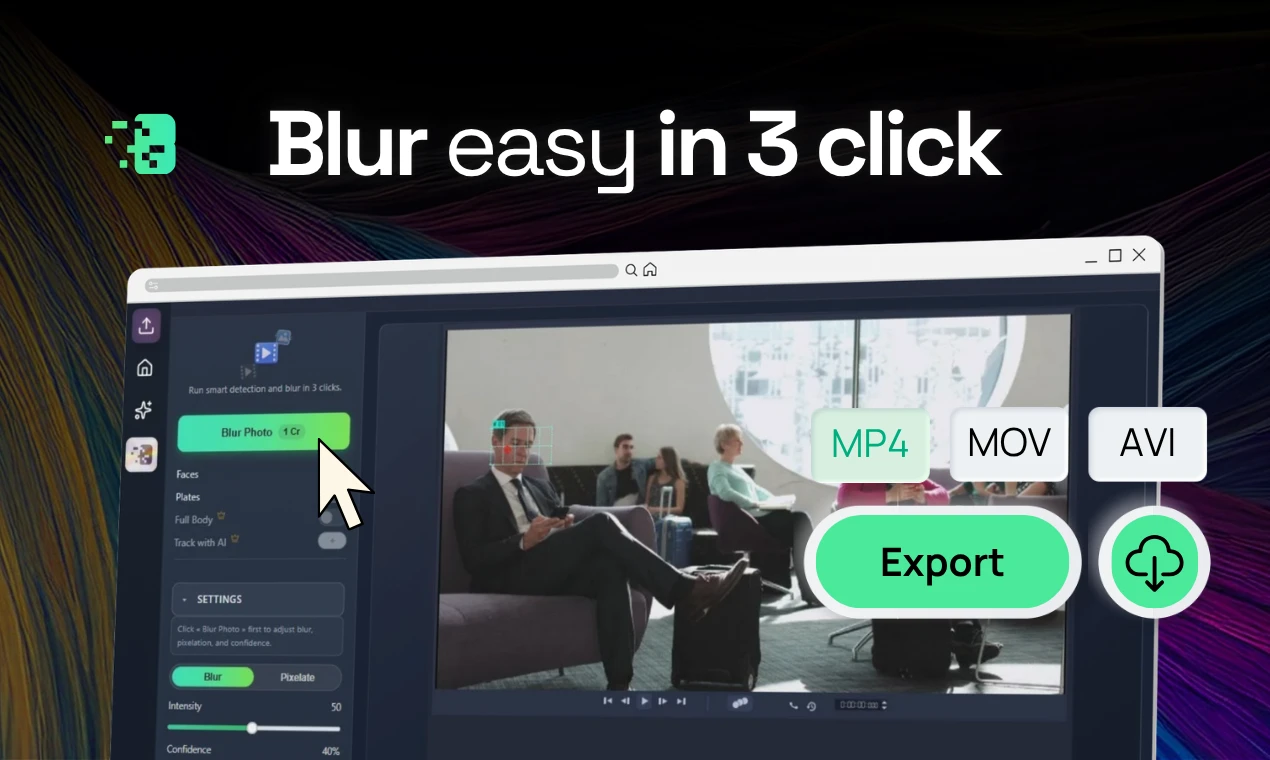
#1  Blurit.app — Top Choice for Video Automation
Pros: Fully automatic AI face detection; tracks moving subjects flawlessly; processes most videos in under 2 minutes; secure, privacy-first European servers; no software to install. Cons: Requires an internet connection. Best for: Creators, journalists, and businesses who need to blur faces automatically without wasting hours on manual keyframing.
Blurit.app focuses on one job: help you publish faster with stronger privacy defaults. Instead of debating whether you found every face in a crowd, you run detection, review, and export. That is the difference between true automatic face blurring and hoping your manual mask survived the last cut.

#2 iloveimg — Best for Static Images
Pros: Extremely simple browser workflow; no account required for basic jobs; fast for still images; clear blur/pixelate controls; works on any OS. Cons: Not for video; manual selection (no automatic tracking); heavy compression if you re-export small files. Best for: Thumbnails, community posts, and one-off screenshots where you need to blur faces with iloveimg in under a minute.
Creators often keep iloveimg in a pinned tab because it is the fastest way to fix a single frame: export a still from Premiere or DaVinci, blur the face, and upload the corrected thumbnail. That workflow does not replace video redaction, but it prevents accidental identity leaks in the packaging around your video.
#3 Canva (free tier) — Best for Short Social Clips
Pros: Familiar UI; strong for short vertical video; huge template ecosystem; easy stickers and shapes to mask faces; cloud access. Cons: Automatic tracking is limited; busy scenes mean manual keyframing; free tier caps export quality and features. Best for: Social clips where creative framing matters as much as privacy.
If your content is mostly Reels or Shorts, Canva can be "good enough" when faces stay roughly in the same region of the frame. The trade-off shows up in walking shots, crowds, and interviews with head movement—exactly where you start searching for blur faces automatically solutions.
#4 Watermarkly — Best for Quick Document Drafts
Pros: Quick uploads; can blur faces and sensitive text; straightforward controls. Cons: Free exports may include watermarks; video support is not its core strength; less ideal for polished creator deliverables. Best for: Drafts and internal reviews before switching to a cleaner export.
Watermarkly is useful when you must hide a face and a piece of text in the same still frame—think event badges or door codes caught in the background.
#5 DaVinci Resolve (free) — Best for Hollywood Control
Pros: Professional tracking and masking; local processing; full quality control; no subscription for the free build. Cons: Steep learning curve; needs a strong PC; slower for beginners. Best for: Editors who already live in Resolve and want maximum control when they blur video faces free online is not a hard requirement (they export locally).
Resolve shines when you need cinematic control: combine power windows, tracking, and color-managed exports. The cost is time. For many creators, the question is not "can I blur here?" but "can I afford another night of tracking before the upload deadline?" If the answer is no, offload detection to an AI pipeline like Blurit and keep Resolve for everything else.
#6 Shotcut (free, open source) — Best for Budget Desktop
Pros: Truly free; no watermark; broad format support; good for simple projects. Cons: Manual tracking workload; UX feels utilitarian; AI assistance is limited compared with dedicated privacy tools. Best for: Budget creators on desktop who accept manual work.
Blurit vs Free Tools: The Comparison
Free tools work—until motion, crowds, or deadlines enter the picture. If you need to blur faces automatically across a whole timeline, browser editors and manual masks break down fast. Blurit.app is built around detection + tracking so you spend minutes, not hours, on typical creator-length clips. For the full product narrative, read AI face blur video online and compare processing expectations before you commit.
| Feature | Blurit.app | Typical free tools | DaVinci Resolve (free) |
|---|---|---|---|
| Price to start | Free trial + flexible plans | Free with limits | Free |
| AI detection | Yes (automatic tracking) | Usually manual | Powerful but manual setup |
| Speed (typical short clip) | Often under < 2 min | Depends on skill | Depends on hardware |
| Quality | HD / 4K workflows | Varies | Excellent |
| Batch | Yes | Rare | Possible |
| Privacy posture | Built for sensitive media | Varies | Local (good) |
Think in terms of total time-to-publish. A free desktop editor might cost $0 in subscription fees but hours of labor when you are on a tight schedule. A browser AI workflow trades a small per-job cost for predictable turnaround—often the better deal for channels that ship weekly. This is also where blur video faces free online searches stop being academic: you either accept manual work, or you adopt automation.
How to Blur Faces Free Online (iloveimg)
Here is a simple how to blur faces free path for still images using iloveimg—useful when your video thumbnail or a frame grab needs a quick fix.
Upload your image
Open the iloveimg editor in your browser and upload the photo or frame export you want to redact.
Apply blur or pixelation
Drag a mask over each face. Tighten the box and increase intensity until identification is not reasonable.
Export
Download the anonymized image and reuse it in your editor or as a YouTube thumbnail.
For actual video, blur video online workflows need motion-aware tools—this is where Blurit's AI face blur is designed to replace manual masking.
Try AI face blur on real footage
Upload a clip, let Blurit detect faces, and export—no credit card required to start.
Try FreeWhen Free Tools Aren't Enough
Free editors fail in predictable ways: masks slip on fast motion, faces reappear when lighting changes, and batch publishing collapses when every upload needs manual fixes. Teams under GDPR-style expectations cannot rely on "good enough" redaction—your process has to be repeatable. That is when fast face blurring with detection and tracking becomes a production requirement, not a luxury.
Another failure mode is inconsistency across episodes. Channel teams reuse intros, lower-thirds, and B-roll libraries. If each episode needs a different manual mask strategy, quality drifts and mistakes compound. Automation keeps redaction uniform so your creative decisions—not your masking stamina—define the upload schedule.
If you film with phones and tablets, you may patch clips in CapCut-style editors first—see our visual note below—then move to AI for consistent face coverage across exports.



Perfect For...
YouTube and long-form creators
Publish faster with fewer manual masks on B-roll and interviews.
TikTok and short-form teams
Turn around vertical clips without losing an afternoon to keyframes.
Small businesses and agencies
Standardize a privacy step before content goes to clients or social channels.
Frequently Asked Questions
A: Blurring is a common anonymization technique, but legality depends on context, jurisdiction, and how you process personal data. Always align with applicable privacy laws and platform rules.
A: Yes—many mobile editors let you add stickers or masks. For automatic coverage on moving subjects, pair mobile editing with an AI workflow in the browser.
A: If you only need thumbnails, iloveimg is hard to beat. For full videos, Blurit.app is the fastest and most reliable automatic solution, while DaVinci Resolve is powerful but heavy for manual work.
A: Duplicate the video layer, apply blur, mask faces, and track masks over time. It works— but it is slower than automated detection for many creator scenarios.
A: You can start in Studio without a credit card and test real clips. Paid plans apply for higher volume or advanced needs.
References
- [1] European Union. GDPR (Regulation (EU) 2016/679). https://gdpr-info.eu/
- [2] YouTube Help. Privacy guidelines. https://support.google.com/youtube/answer/7671399
- [3] iloveimg. Photo editor (blur / pixelate). https://www.iloveimg.com/
Conclusion
Free tools absolutely work—especially for still images and for editors who enjoy the craft of masking. But if your time is valuable and your footage moves, the best ROI is usually automatic face blurring with a focused AI tool. Start with the comparisons above, try iloveimg when you only need a photo, then move to Blurit's AI face blur video when you want upload-to-export speed without a masking marathon.
Pick your workflow based on what fails first: if thumbnails are the bottleneck, stay in the image tools. If motion and crowds are the bottleneck, move upstream to AI before you build an entire season of content on manual masks. And keep one rule in mind: the best privacy edit is the one your team will actually repeat every week—not the theoretically perfect mask you abandoned after three uploads.