

How to blur a face in an iPhone video: complete tutorial (2026)
How to blur a face in an iPhone video: complete tutorial (2026)
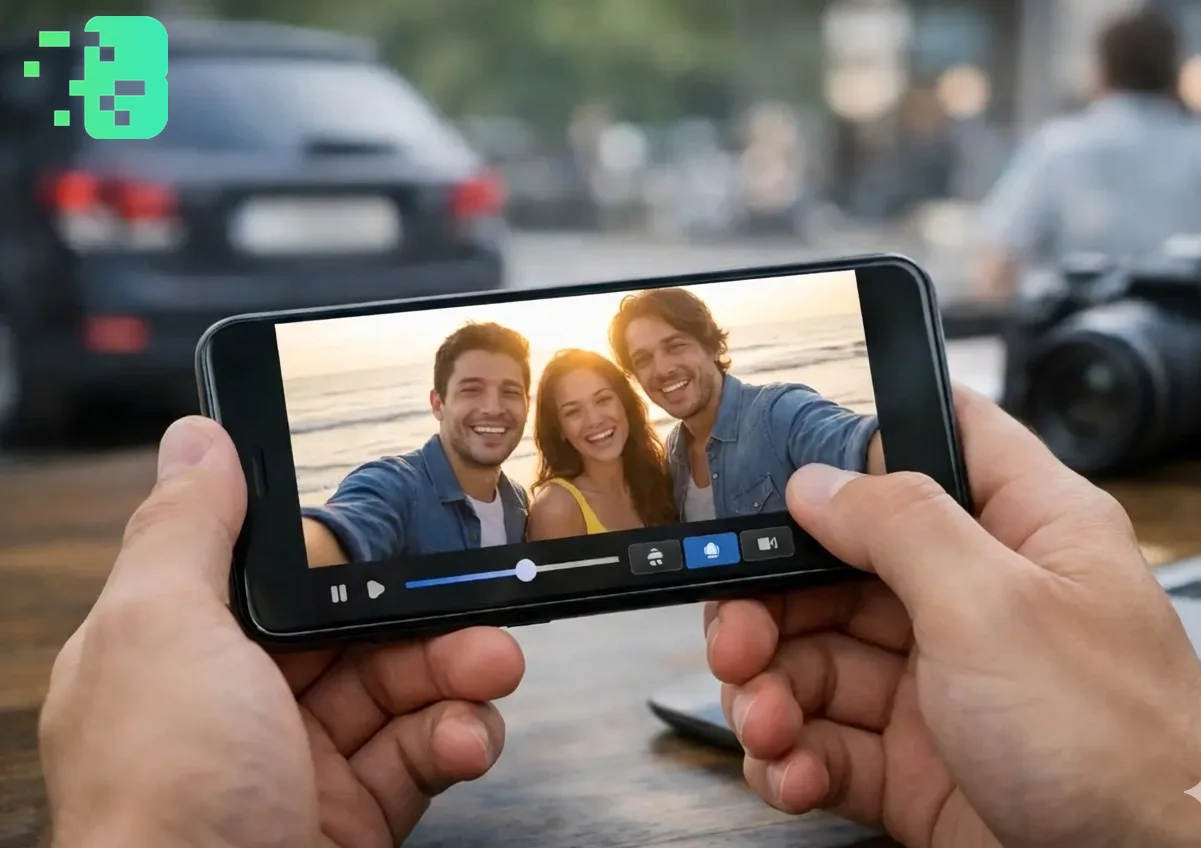
On iPhone, creators and field teams often shoot in MOV or HEVC, then need to blur a face in a video before publishing. Native apps (Photos, iMovie) only offer manual blur or limited controls: for reliable automatic face blurring, a browser + AI workflow like Blurit Studio is usually the simplest. This guide covers iOS limits, a concrete step-by-step, formats, privacy (GDPR), and an SEO-friendly FAQ — a long-tail tutorial in full depth.
What you will learn
- Why the iPhone alone is not always enough to anonymize a video quickly.
- How to export a clip from Photos and process it without installing anything.
- How to combine automatic detection and human review to avoid misses.
- Which mistakes to avoid (HDR, large files, AirDrop sharing).
iPhone: what Photos and iMovie do (and don’t)
Photos lets you edit a video (crop, filters, stabilization) but does not offer a dedicated “blur every face automatically” module for a long clip. iMovie on iOS can add effects or blur to regions, often manually or with settings poorly suited to moving faces.
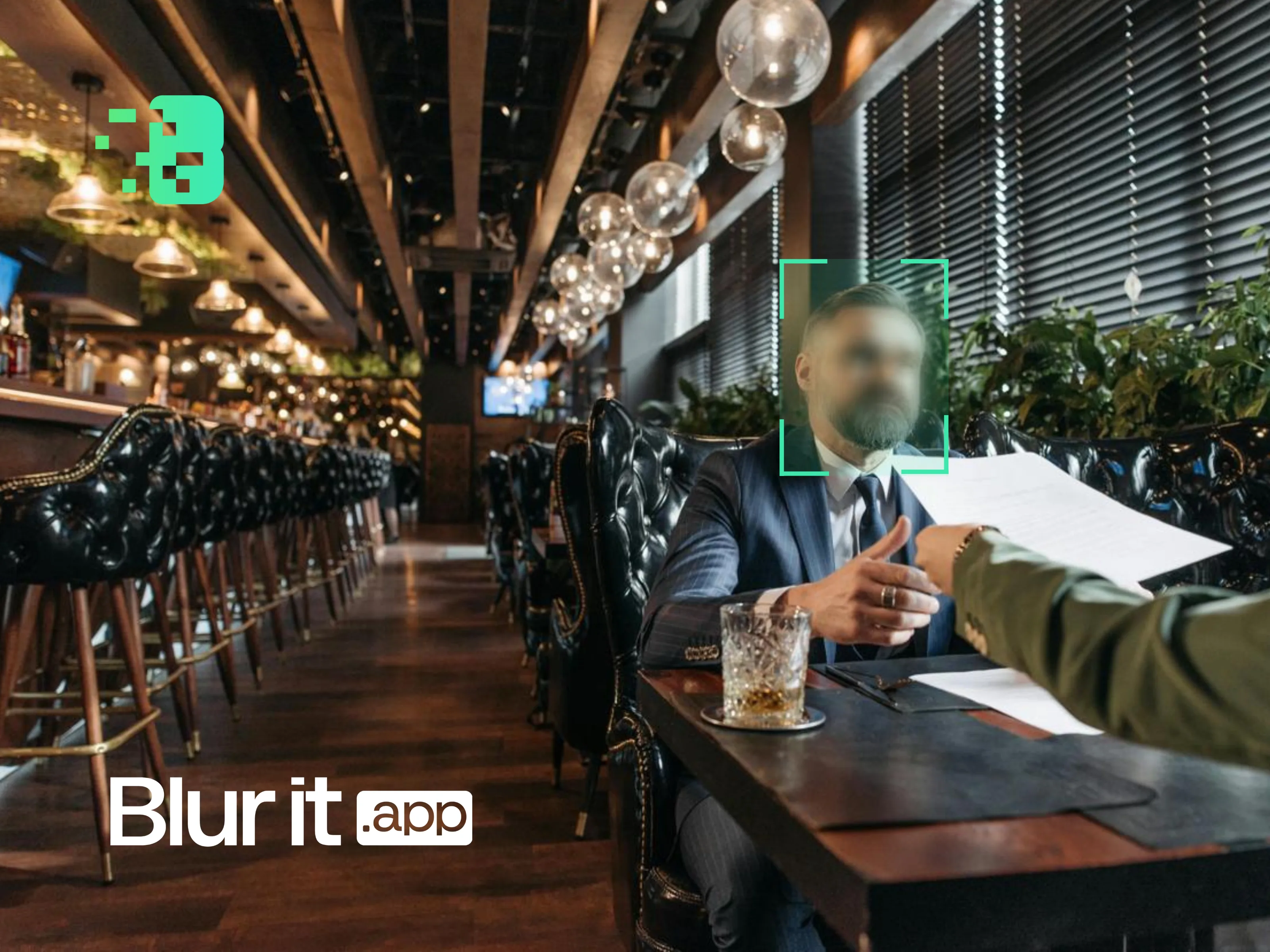
In real cases (vlog, street, events, pro field work), you need detection + tracking over time + a clean export. That’s where an online tool with AI takes over — without filling the iPhone with heavy editing apps.
Why use the browser on iPhone (Safari or Chrome)
- No app to install: open a URL, upload the file, export.
- Common formats: most workflows accept MP4, MOV, H.264 / HEVC depending on studio options.
- Continuous updates: detection models evolve server-side, with no App Store update.
Blurit is built for video blurring and anonymization (faces, plates, regions). For volume or API, see pricing and team plans.

Tutorial: blur a face in an iPhone video with Blurit (steps)
1. Prepare the file on the iPhone
- Open Photos and select the video.
- Check resolution: very large exports can slow upload; for future shoots, use Settings > Camera > Formats to balance efficiency vs quality.
- Optional: send the file to a Mac/PC if you prefer uploading from desktop.
2. Open Blurit Studio in Safari
Go to studio.blurit.app, sign in or create an account. On iPhone, use a stable connection (Wi‑Fi) for long clips.
3. Import the video
Use the import button and pick the file (from iCloud, Files, or the gallery depending on the browser). Wait until upload completes.
4. Choose blur mode
- Blur or pixelation depending on the look you want.
- Let the AI suggest zones on faces; check shots where the person is partly visible.
5. Adjust and export
Tune intensity, review fast shots (motion, profile), then export. Keep a local copy of the final file before posting on social networks.
iPhone-specific tips
- AirDrop: handy to send MOV to a Mac if you prefer finishing on a large screen.
- Low Power Mode: can limit browser performance — plug in for long encodes.
- File names: rename exports (e.g.
street_anonymized.mp4) to track compliant versions.
Compliance and best practices (GDPR)
Blurring a video does not replace legal advice, but it is a useful technical measure to reduce identification of individuals. Document the purpose of processing, limit retention of source files, and avoid duplicating unblurred versions on insecure channels. For sensitive cases (minors, health, sensitive locations), strengthen internal governance.
FAQ
Can I blur only some faceså
Yes: combine automatic detection and manual zones to blur only the people concerned.
Does blur prevent facial recognition?
Strong blur or proper pixelation greatly reduces reuse of facial features; cover the full time on screen.
What if the video is 4K?
Files are heavier: use Wi‑Fi and allow longer upload; check your plan limits on the pricing page.
Conclusion
To blur a face in an iPhone video without a complex toolchain, phone + browser + AI remains the most efficient approach in 2026. Try the flow on Blurit Studio, validate on a few critical shots, then publish with confidence.