

How to Pixelate a Picture Online in 3 Clicks or Less (2026 Guide)
Need to pixelate a picture online? You can do it in seconds. Browser-based tools offer a secure and incredibly fast way to anonymize faces or hide sensitive data, all without downloading a single piece of software. The process is simple: upload your image, apply the pixelation, and download the finished file.
Fastest option: pixelate a video online — automatic AI detection and tracking, no watermark.
TL;DR — The fastest way to pixelate a picture online is a browser-based tool like Blurit: upload your image, let the AI detect faces and sensitive areas, download in under 10 seconds. No software, no server upload, no watermark.
Why pixelation is your go-to for digital anonymity
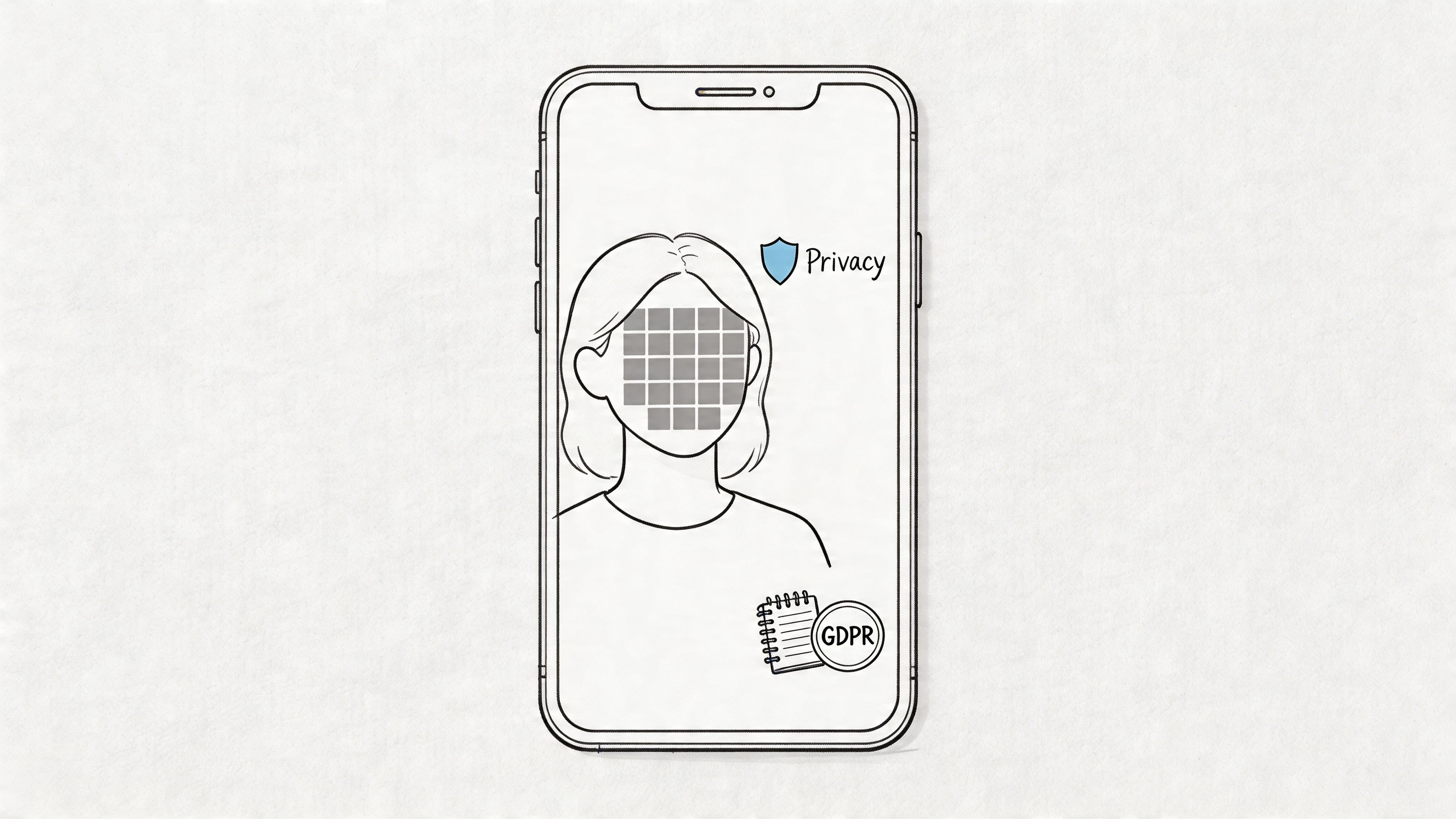
Pixelation is much more than a retro visual effect. In a world where we share images instantly, knowing how to anonymize them properly has become a fundamental digital skill — for professionals and everyday users alike.
The need is everywhere. A journalist might pixelate a source's face to protect their identity. A real-estate agent could obscure personal photos on the wall in a property listing. Even a parent sharing a photo of their kid's soccer team on social media might pixelate the other children's faces to respect their privacy.
The growing demand for secure anonymization
The push for fast, secure ways to pixelate a picture online is all about privacy. A 2024 Pew Research study found that 81% of U.S. adults are worried about how companies use the data they collect from social media.
This anxiety is amplified by tough privacy laws like GDPR, which led to €2.7 billion in fines in 2024 alone. Modern tools like Blurit tackle this head-on by processing images directly in your browser, which means sensitive files are never uploaded to a server.
This browser-based approach has become the standard for good reason. It completely sidesteps the security risks and hassle of downloading sketchy software. You get instant privacy without putting your device at risk.
Key takeaway: The best online pixelation tools put privacy first by processing images on your device. This "browser-side" method means your private photos never leave your computer, giving you the highest level of security.
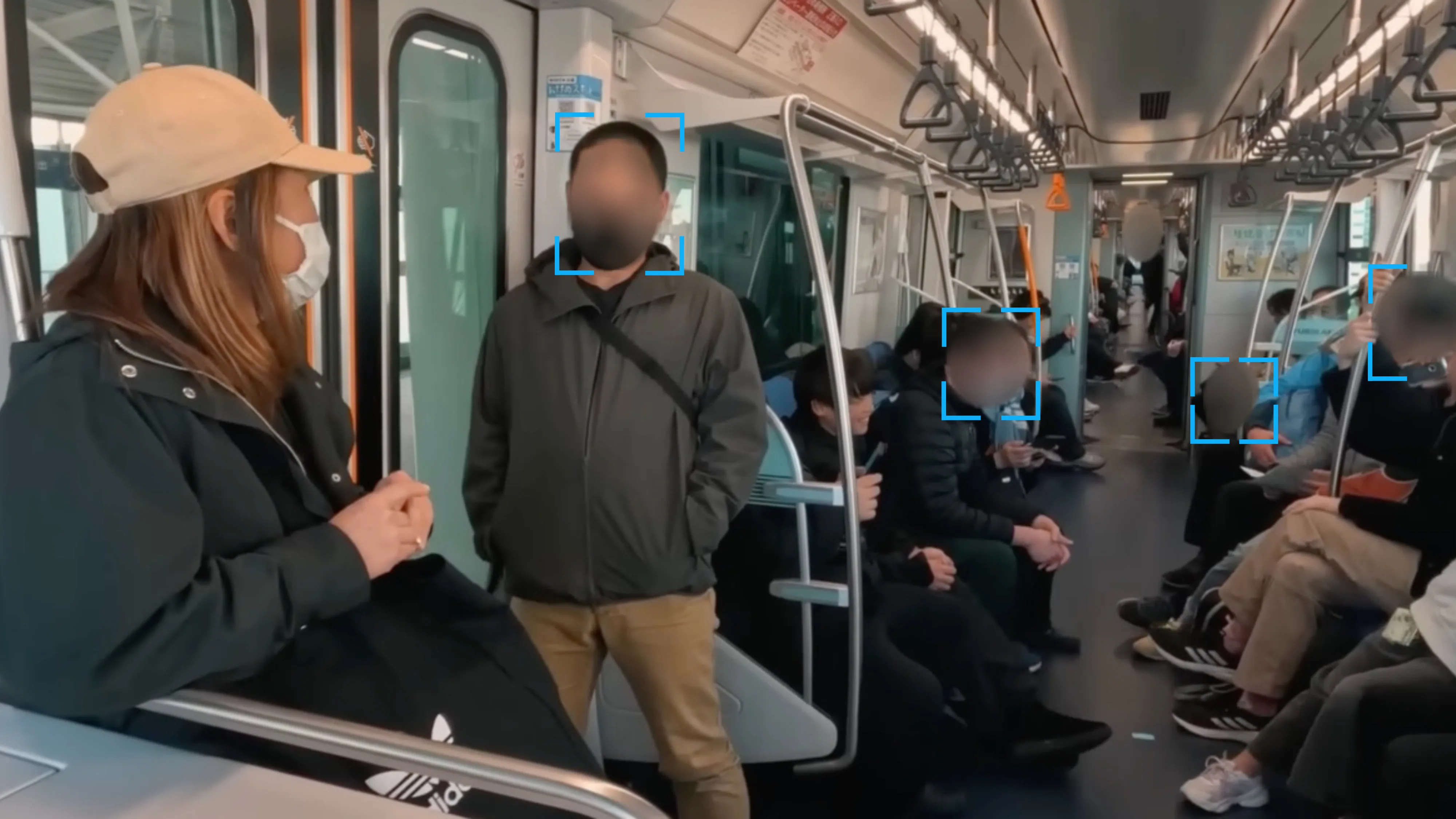
This shows just how effectively pixelation can anonymize someone's identity, making it an essential tool for sharing photos online. Mastering this simple skill isn't just nice to have anymore — it's crucial for professional integrity and personal security in 2026 and beyond.
A practical guide to pixelating a picture online
When you need to pixelate a picture online, you don't have time for clunky software or confusing interfaces. You need a fast, secure process that just works. That's where modern, AI-powered browser tools come in, turning a multi-step chore into a simple, three-click workflow.
A huge advantage here is that the entire process happens right in your web browser. There's nothing to download or install. More importantly, your private images are never uploaded to a third-party server, keeping your data on your device from start to finish.
Step-by-step: the three-click workflow
Getting professional-grade pixelation is surprisingly direct. It boils down to a simple sequence anyone can master, regardless of technical skill. The goal is efficiency — letting smart automation do the heavy lifting for you.
- Upload your image — drag and drop your photo or video directly onto the page. A tool like Blurit immediately starts processing the file locally on your machine.
- Let the AI do the work — the tool's AI automatically finds common identifiable details: faces, license plates and other sensitive information that needs to be anonymized.
- Download your anonymized file — once the AI applies the pixelation, just click to download the finished, high-quality file. The anonymization is irreversible, locking in privacy for good.
This workflow is built for speed. Imagine a social media manager with a great crowd shot from an event that needs to go live now. Instead of manually editing every face, you can anonymize the whole photo in under a minute and post it — respecting everyone's privacy without missing your moment.
A visual guide to instant pixelation
Seeing it in action makes the simplicity even more obvious. The experience is clean, intuitive, and designed for quick turnarounds.
The diagram below shows how a tool like Blurit works. The AI automatically identifies sensitive areas and applies the pixelation effect, all in a few simple steps.
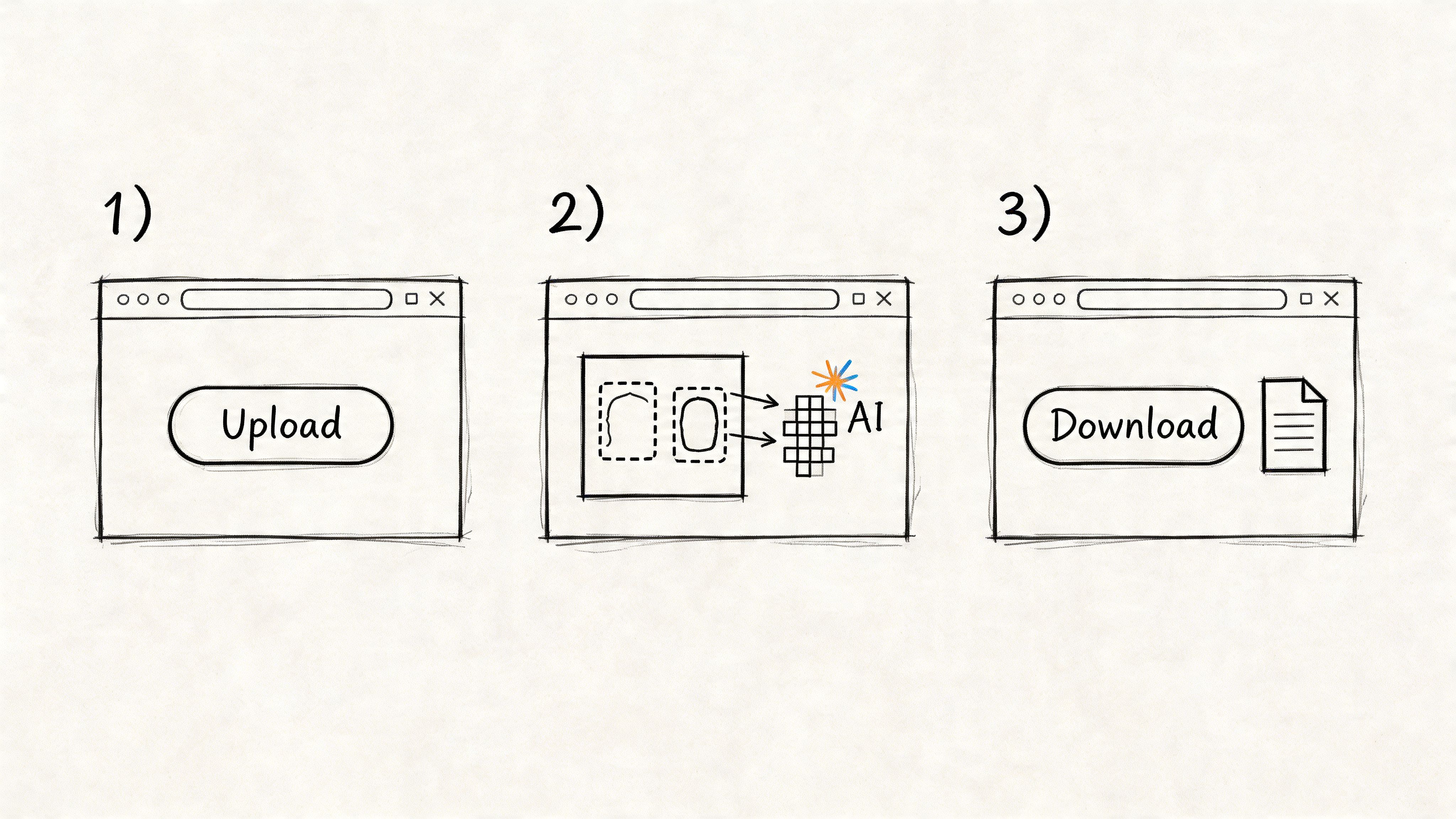
This visual shows how the tool gives you a clear preview before you export, so you know exactly what the AI has done. The process is completely transparent.
Expert tip: To maximize efficiency, process images in batches. If you have a folder of photos from the same event, you can often upload them all together and let the AI anonymize them in one go — a massive time-saver.
This automated approach is perfect for a wide range of situations where speed is everything. A journalist on a deadline can protect a source's identity without delay. A legal firm can redact sensitive information from visual evidence in minutes. Even a hobbyist sharing photos from a car show can instantly obscure license plates before posting online. The real power is getting reliable results without a learning curve.
Practical guide: advanced pixelation techniques
While one-click pixelation is great for speed, real control comes from getting your hands on the settings. Moving past the defaults is how you turn a simple privacy tool into something much more precise — and creative.
The most important setting to master is the pixel size, sometimes called block size. This single slider completely transforms the final image. A small pixel size gives you a fine-grained, subtle effect — perfect for irreversible anonymization where you don't want to draw attention to the edit.
Crank it all the way up, though, and you get a coarse, blocky aesthetic that channels the vibe of 8-bit video games.
This level of control is what separates a quick fix from a deliberate artistic or professional choice. By adjusting the pixel size, you aren't just hiding information — you're defining the visual style of the anonymization itself.
Going beyond full-image effects
The real power move is selective pixelation. Instead of blasting the entire image, modern tools let you draw or select the exact areas you want to modify. This opens up a ton of practical uses.
- For professionals: a real-estate agent can pixelate a messy corner of a room in a listing photo, cleaning up the scene without altering the house's actual features. A researcher can obscure sensitive data in a scanned document while leaving the rest of the page perfectly readable.
- For creators: you can build compelling visual narratives by pixelating specific objects, forcing the viewer's eye toward the sharp, unedited parts of the image. A fantastic technique for adding mystery or emphasis.
This targeted approach ensures you only hide what's necessary, keeping the rest of the photo's context and integrity intact. It's the difference between using a sledgehammer and a scalpel.
Inverting the effect for creative focus
Another powerful technique is to invert the pixelation. Instead of hiding your subject, you keep them tack-sharp and pixelate everything else around them. It's a brilliant way to create a strong focal point — almost like mimicking the shallow depth-of-field effect from a pro camera lens.
Imagine a street photographer wanting to isolate one person in a bustling crowd. By inverting the pixelation, the subject stays crisp and clear while the chaotic background melts into a colorful mosaic. This instantly tells the viewer who the main character of the photo is.
While the pixel-art aesthetic has roots in the 8-bit gaming era of classics like 1985's Super Mario Bros., today's tools are driven by a modern need: privacy. Events like the 2018 Cambridge Analytica scandal shifted the focus from pure style to functional security.
This is why modern tools like Blurit offer a robust free tier — it meets the needs of the 300 million active monthly creators who demand both creative freedom and privacy. Features like instant in-browser processing and high-resolution exports without a subscription are no longer a luxury; they're a necessity.
How to choose the right online pixelation tool
So, you need to pixelate a picture online. A quick search pulls up dozens of tools, but here's the thing: not all of them are built the same. The simple, ad-riddled site you might use for a meme is the absolute wrong choice for redacting sensitive legal documents or anonymizing employee photos for a company newsletter.
Picking the right tool always boils down to one question: what's your goal? A quick artistic effect, or bulletproof, irreversible anonymization? The answer completely changes which platform you should trust — especially when it comes to how they handle your data.
Security and privacy come first
For any professional or sensitive use case, security isn't just a feature — it's the entire foundation. Look for tools that explicitly state they use browser-side processing. This is a fancy way of saying your images never get uploaded to a third-party server. They stay right there on your device, giving you total control.
Many free online editors do the opposite. They upload your files to their servers to do the work, which opens up a huge privacy risk. Your images could be stored, analyzed, or worse, exposed in a data breach. You can always dig through a privacy policy, but the safest bet is to stick with tools that process everything locally in your browser.
A tool's privacy posture is usually pretty obvious. If it doesn't proudly advertise that your files never leave your computer, you can assume they probably do.
Comparing your options
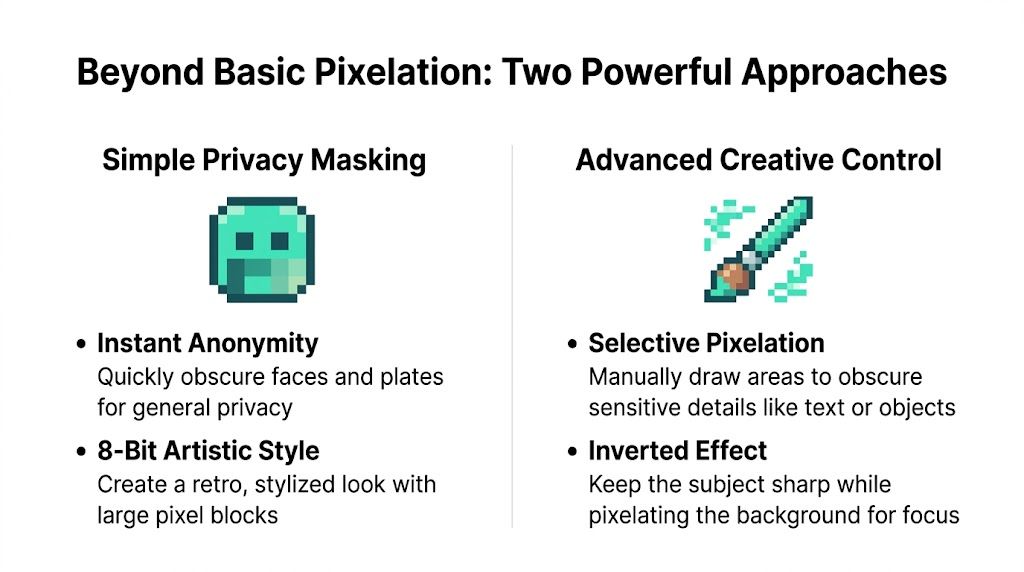
This diagram lays out the two fundamental approaches to pixelation. It's a great way to see whether you need a quick, creative effect or precise, secure masking.
As you can see, there's a clear line between tools designed for artistic flair and those built for serious redaction. This distinction is critical in professional environments.
Security teams and compliance officers are turning to pixelation more than ever, especially with global CCTV installations estimated to have hit 1 billion cameras by 2025. A 2026 Gartner report drove this point home, noting that 68% of organizations breached via exposed surveillance footage faced average GDPR fines of €1.2 million.
Online pixelation tool feature comparison
To help you decide, this table breaks down the features of three common types of online pixelation tools. It's a quick way to match your primary need — privacy, art, or basic editing — with the right platform.
| Feature | Blurit (Professional Privacy) | Simple Artistic Tools | Basic Photo Editors |
|---|---|---|---|
| Primary use case | Secure anonymization, GDPR compliance | Creative effects, memes, social media | General photo touch-ups |
| Processing location | Browser-side (no server upload) | Server-side (potential privacy risk) | Server-side (potential privacy risk) |
| Data privacy | High (ephemeral processing, no logs) | Low (often ad-supported, tracks data) | Variable (check privacy policy) |
| Selective pixelation | Yes (manual & automatic detection) | Usually whole-image or basic selection | Yes (manual selection tools) |
| Irreversible anonymization | Yes (designed for permanent redaction) | No (often reversible or low-quality) | No (not its purpose) |
| Export quality | High resolution, no watermarks | Low to medium, often with watermarks | Medium to high, plan-dependent |
| Best for | Legal, HR, journalism, security | Content creators, personal fun | Casual users, quick edits |
As the table shows, a tool's intended purpose dictates its architecture. Professional privacy tools prioritize security above all else, while artistic and general-purpose editors focus on ease of use and creative features — often at the expense of data control.
Key features to evaluate
When you're comparing tools, here's a quick checklist of what really matters:
- Processing location: does it work in your browser or on a server? For anything sensitive, always choose browser-side.
- Feature set: does it just offer a simple block-out tool, or does it include smart features like automatic face detection and manual controls for precise adjustmentså
- Export options: can you export in high resolution without a watermark? Is the pixelation truly irreversible, or just a weak filter?
- Business model: is it free with a ton of ads, or is there a clear professional tier? How a tool makes money often tells you everything you need to know about its priorities.
Understanding the security of online image editors
When you need to pixelate a picture online, you're almost always handling sensitive data — faces, license plates, private documents. So what actually happens to your image file after you upload it to a free web tool?
The answer reveals a massive security gap between different online editors, and it all comes down to a single concept: where the processing happens.
Many online tools rely on server-side processing. This means your image gets uploaded to a third-party server. Once it's there, you've lost control. That server could be anywhere in the world, and your photo could be stored, scanned, or exposed in a data breach.
The power of browser-side processing
A far more secure model is browser-side processing. With this method, your image file never leaves your computer. The entire workflow — from upload to editing and export — happens locally inside your web browser.
This is the non-negotiable gold standard for privacy when you need to pixelate a picture online.
Because the file is never transmitted to an external server, the risk of it being intercepted, stored, or misused by the service provider is completely eliminated. This architecture gives you total control over your sensitive data. It's a critical feature for anyone handling confidential information, including:
- Legal professionals redacting evidence in case files
- Journalists protecting the identity of their sources
- HR departments anonymizing employee photos for internal communications
- Security teams obscuring faces in surveillance footage to comply with privacy laws
Choosing a tool that processes images directly in your browser is the single most important step you can take to protect your privacy. If a tool's privacy features aren't a core part of its marketing, assume your data is being uploaded.
Tools built on this privacy-first model are designed to protect you by default. Your data remains your own; the editor is just a temporary utility that runs on your machine.
What ephemeral mode means for your data
To take security a step further, look for tools offering an ephemeral mode. This feature guarantees that once you close your browser tab, all traces of your file and edits are instantly and permanently wiped from your computer's memory. It's like the tool was never there.
This is especially important for users in shared work environments or those who must follow strict data-handling protocols like GDPR. Ephemeral mode ensures no lingering data footprint is left behind.
When a tool combines browser-side processing with ephemeral mode, it creates a secure, private and transient workspace for your most sensitive editing tasks.
Ultimately, the technical foundation of an online editor is everything. When your goal is to pixelate a picture online for privacy, the tool you choose must be built on a privacy-first architecture. Server-side processing introduces unacceptable risks, while browser-side processing ensures your data stays securely in your hands.
Pixelate your photos in seconds — free
Upload an image, let Blurit detect faces and sensitive areas, then export — no credit card, no watermark, browser-side only.
Open Blurit StudioCommon questions about pixelating pictures online
Once you get the hang of pixelating images, a few common questions always pop up. Let's tackle them head-on so you can anonymize your photos with total confidence. Getting these details right separates amateur work from professional, privacy-compliant results.
Yes, absolutely. When you pixelate an image correctly and export it, you are performing a destructive edit. The original pixel data in the selected area is gone for good, replaced by colored blocks. There is no "un-pixelate" button that can magically restore the original faces or text. This is precisely why it's the trusted method for permanent anonymization in journalism, legal evidence, and security footage. Always work on a copy and keep your original, high-resolution file safe before applying irreversible changes.
While people often use the terms interchangeably, pixelation and blurring are fundamentally different — both in how they work and how secure they are.
- Pixelation is a digital, blocky effect. It breaks a section of an image into large squares of solid color, completely obliterating the original details. It's built for security.
- Blurring, like a Gaussian blur, averages the colors of neighboring pixels. This creates a soft, out-of-focus look that's often used for artistic depth. However, it's less secure: sophisticated software can sometimes analyze the color gradients to partially reverse the effect.
For true, irreversible anonymization, pixelation is always the superior and more reliable choice.
The ethics here really boil down to context and intent. If you're taking photos in a public space — like a busy street, a park, or a public event — there's no reasonable expectation of privacy. Pixelating the faces of strangers before you post the image isn't just ethical; it's a responsible and considerate thing to do. You're respecting their privacy, since they never consented to be in your shot. Where it becomes unethical is if you use pixelation to deceive, misrepresent a situation or hide legally required information. The guiding principle is simple: use it to protect privacy, not to mislead.
Yes. Blurit processes both photos and videos, with automatic AI detection of faces and license plates. See the AI face blur for video page for details.
No account is required for basic use. Start directly at studio.blurit.app — upload, pixelate, download.
Ready to pixelate your own photos and videos with confidence? Blurit offers secure, browser-side processing with both automatic detection and manual controls. Try it for free and see how easy professional-grade anonymization can be.