

Top 5 tools to pixelate faces in images in 2026
Top 5 tools to pixelate faces in images (2026)
If you publish photos from public places, events, or interviews, you’ll eventually need to pixelate faces to protect privacy. In this guide, we compare 5 practical options in 2026—so you can choose the right tool based on speed, quality, and workflow.
Fastest option: pixelate a video online — automatic AI detection and tracking, no watermark.
Why pixelate faces in imageså
- Privacy: avoid exposing identifiable people without consent
- Risk reduction: fewer complaints and takedown requests
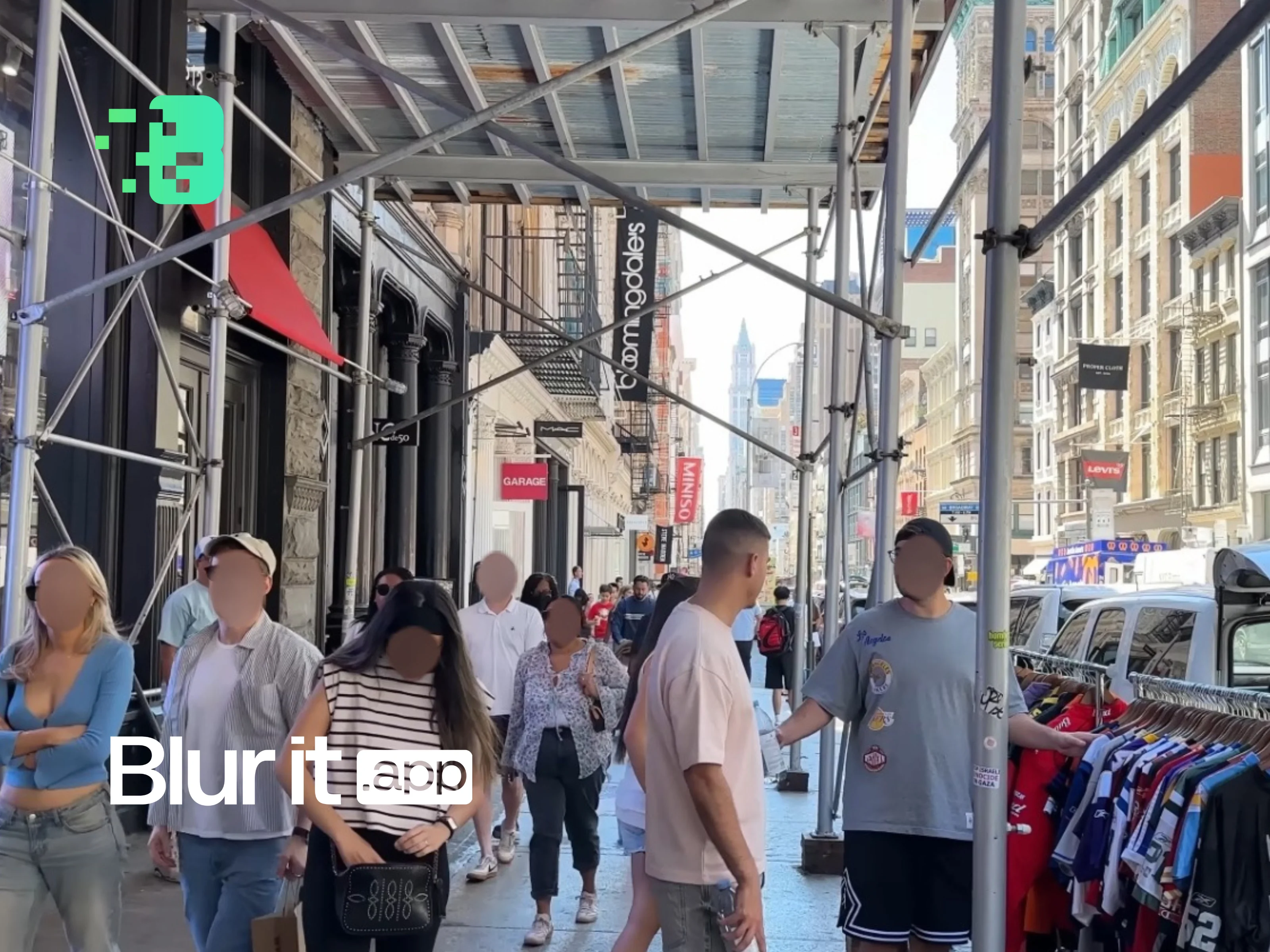
- Time savings: automatic detection beats manual masking
- Professional output: clean anonymization makes your content safer to share
How to choose a pixelation tool
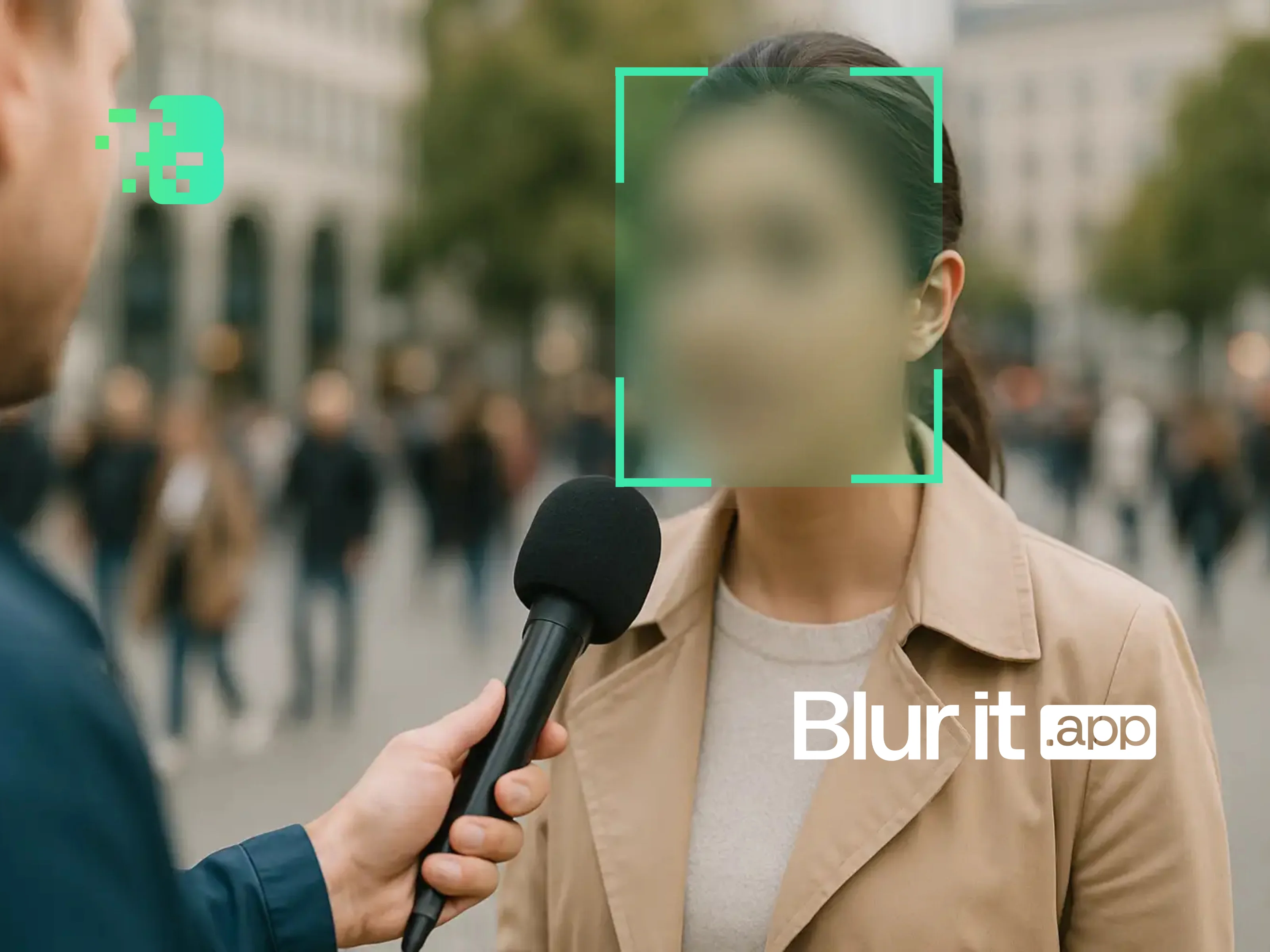
- Automatic face detection: the biggest time saver for multiple faces
- Output quality: consistent pixel blocks, clean edges, good export
- Ease of use: important if you do this every week
- Data handling: where is your content processed/stored?
- Image + video support: nice if you also publish clips
The 5 best tools to pixelate faces in 2026
1) Blurit.app — fastest, simplest workflow
Blurit.app is a 100% online tool that uses AI to automatically detect faces and apply pixelation (or blur). No installation—just upload, anonymize, export.
- AI face detection
- Instant processing for images
- Simple UI for quick publishing
- Also supports video anonymization when needed
2) Adobe Photoshop — full manual control
Photoshop offers precise editing. You can pixelate faces with a mosaic/pixelate filter on a selection/mask.
- Pros: maximum control, professional workflows
- Cons: manual, time-consuming, paid one-time credit packs
3) GIMP — powerful and free (but manual)
GIMP is a free, open-source editor. It works well for occasional pixelation, but it’s typically a manual process.
- Pros: free, capable
- Cons: no AI, less modern UI, installation required
4) Canva — convenient for simple needs
If you already design posts in Canva, basic blur/pixel effects can work for a couple of faces—without leaving your design tool.
- Pros: easy, fast for basic edits
- Cons: no face detection, limited anonymization controls
5) Facepixelizer (web tool) — quick, but limited
Dedicated “face pixelizer” websites can help for one-off tasks. Quality and privacy practices vary—so be cautious with sensitive content.
- Pros: quick, often free
- Cons: inconsistent results, limited options, not built for volume
Comparison table
| Tool | Auto detection | Pricing | Install | Video |
|---|---|---|---|---|
| Blurit.app | Yes (AI) | Free trial / one-time credit packs | No | Yes |
| Photoshop | No | one-time credit packs | Yes | No |
| GIMP | No | Free | Yes | No |
| Canva | No | Freemium | No | Limited |
| Face pixelizer websites | Varies | Often free | No | No |
Which one should you pick?
- Need speed: Blurit.app (automatic detection + clean export)
- Need full editing control: Photoshop
- Need free software: GIMP
- Already using a design tool: Canva
- One-off use: basic web tools (but check privacy)
Try Blurit.app on your images
If your goal is to pixelate faces quickly without complicated editing, Blurit.app gives you a direct workflow: upload → AI detects → export.
Try Blurit.app for free — 100% online, no installation.
Note: This article lists multiple options available on the market. Blurit.app is one of the tools mentioned.