

How to automatically blur a video (faces & license plates): the complete guide (2026)

How to automatically blur a video (faces & license plates): the complete guide (2026)
Shot a video with identifiable people or vehicles and need to anonymize it quickly? AI-powered automatic blurring can detect and blur faces and license plates in minutes—without tedious manual masking. Here’s a practical, end-to-end guide.
Why choose automatic blurring?
Manual blurring in a traditional editor has a few common drawbacks:
- Time-consuming: hours of work for a short clip
- Error-prone: it’s easy to miss a face in the background
- Complex: manual tracking takes real editing skills
- Costly: pro tools + your time add up fast
Automatic blurring solves this by detecting and tracking sensitive elements for you.
How does automatic blurring work?
1) AI detection
The model scans each frame to identify:
- Faces (front view, profile, partially occluded)
- License plates (different formats and countries)
- Optionally: screens, badges, text
2) Tracking (motion follow)
Once detected, the blur follows movement automatically:
- people walking or turning
- vehicles moving through the scene
- new faces/plates entering the frame
3) Applying blur or pixelation
The anonymization effect (blur or pixelation) is applied to the detected zones while keeping the rest of the image intact.
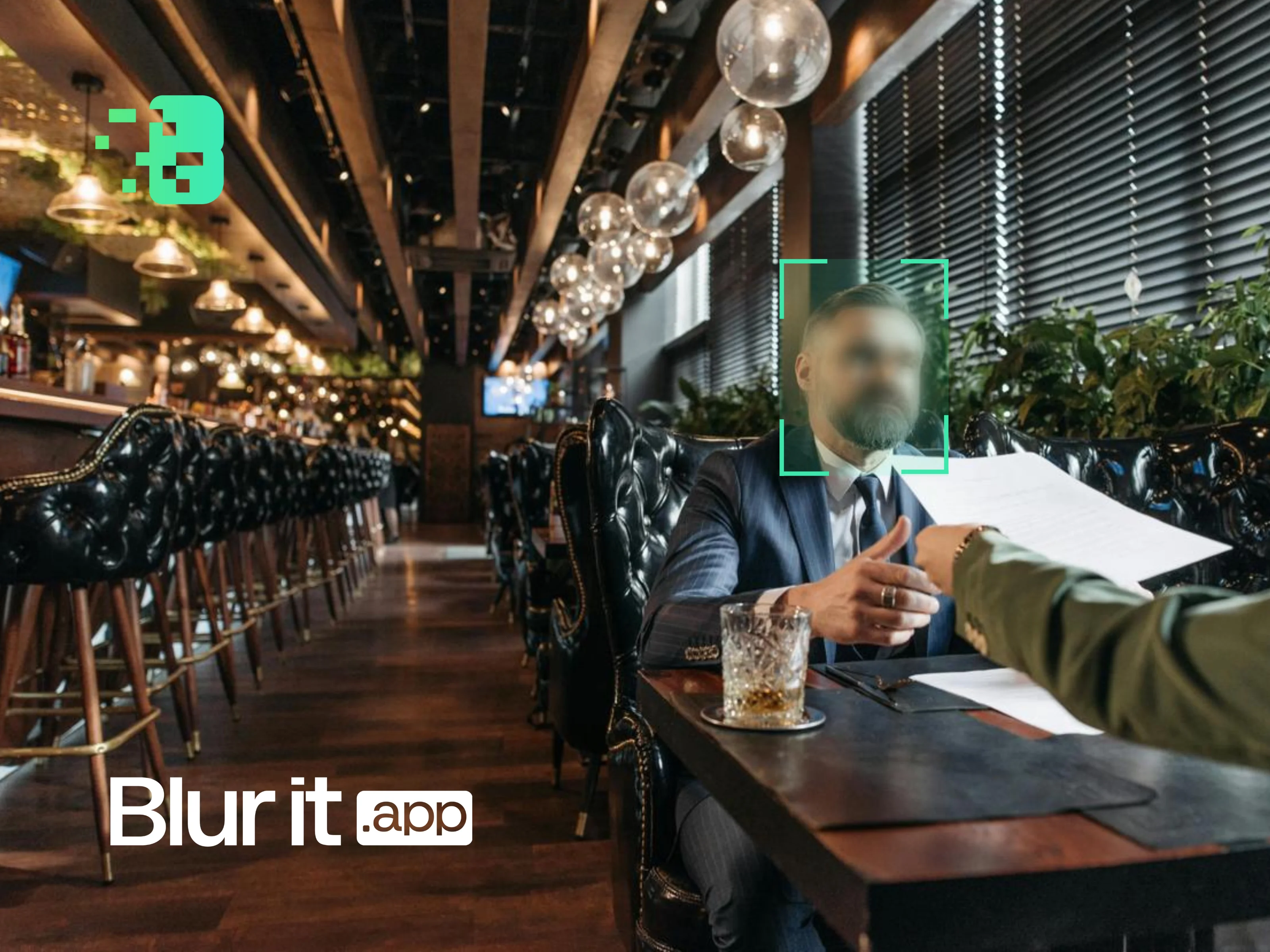
How to blur automatically with Blurit.app
Step 1: Upload your video
Go to Blurit.app and drag & drop your file. Supported formats typically include MP4, MOV, AVI, and WebM.
Step 2: Choose what to anonymize
Select the elements you want to blur:
- Faces only
- License plates only
- Faces + license plates (recommended)
Step 3: Process the video
Blurit.app analyzes your footage and applies the blur automatically. Processing time depends on duration and complexity (usually a few minutes).
Step 4: Preview and export
Review the result, adjust if needed, then export your anonymized video in high quality.
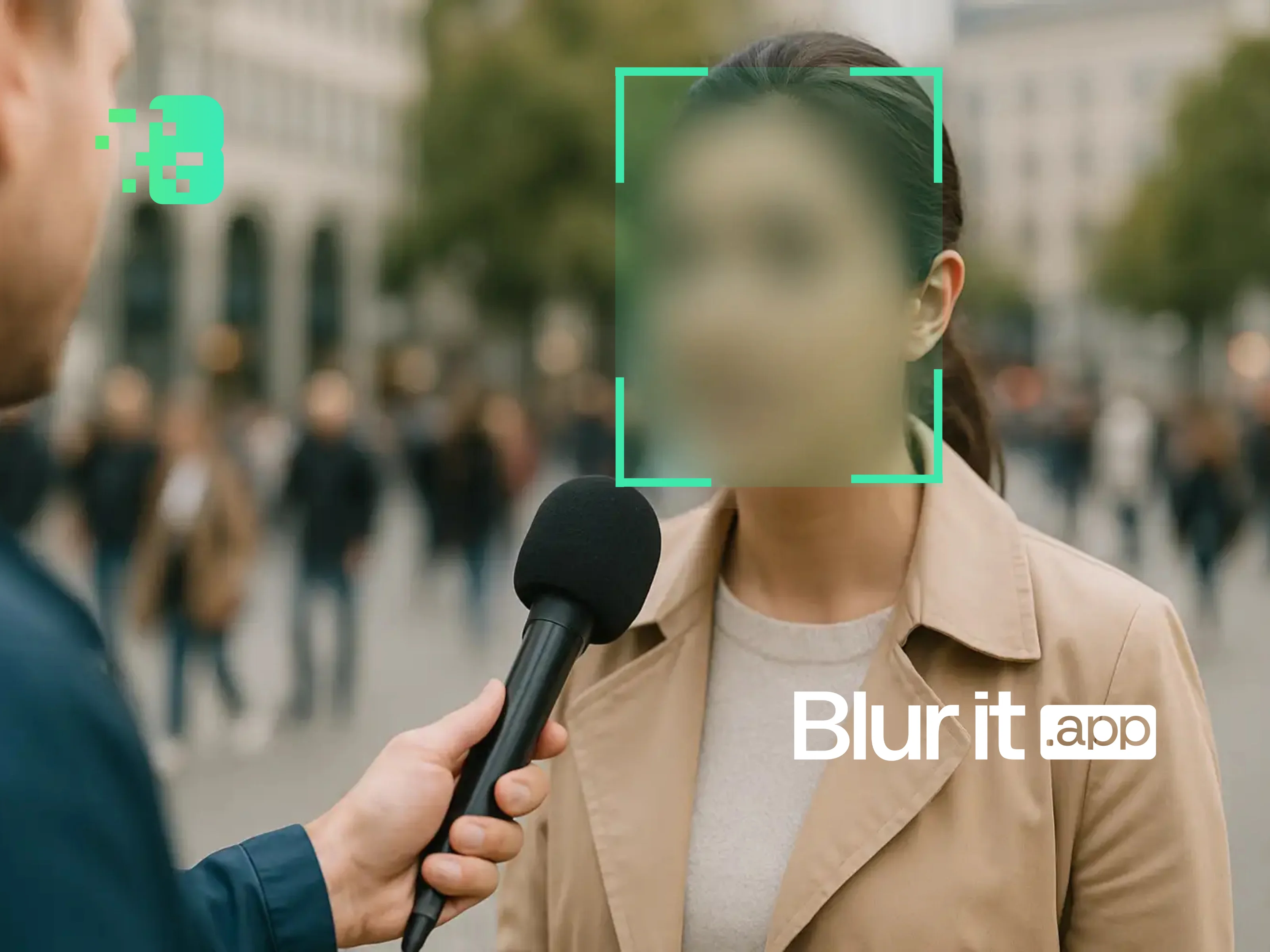
Common use cases for automatic blurring
For creators
- public vlogs
- street interviews
- dashcam / travel videos
- product tests filmed outdoors
For businesses
- security footage you need to share
- user research and customer interviews
- internal training with real-world examples
- external communications (events, offices)
For compliance
- GDPR anonymization of archived videos
- sharing footage with external vendors
- publishing incident videos safely
Automatic vs manual: quick comparison
| Criteria | Automatic blurring (AI) | Manual blurring |
|---|---|---|
| Time | 5–15 minutes | 2–5 hours |
| Reliability | High (less risk of misses) | Variable (easy to forget a face) |
| Skills required | None | Advanced video editing |
| Cost | Free trial / one-time credit packs | Software + time |
| Scales to volume | Yes | Limited by time |
Tips for best results
- Video quality: higher resolution improves detection
- Lighting: well-lit faces are easier to detect
- Final review: always double-check the export
- Reflections: watch out for mirrors, windows, and screens
Try Blurit.app on your videos
Ready to anonymize your footage quickly? Blurit.app uses AI to detect and blur faces and license plates in a few clicks—100% online, no installation.
Try Blurit.app for free — automatic detection, results in minutes.
Note: processing time varies depending on video length and complexity.