

Blur Face App: Anonymize Photos & Videos [2026]
A blur face app stops being optional the moment you must publish, share, or archive media that still shows people who never agreed to be identifiable. Newsrooms, marketers, security teams, and compliance groups all hit the same wall: manual masking in a heavy editor is accurate, but it does not scale when deadlines and volume go up.
TL;DR: the fastest professional pattern is upload → review detections on a canvas → export. Open Blurit Studio, let AI find faces (and other sensitive regions), tighten coverage where risk is high, then download a redacted copy—no install, built for photos and videos.
Modern browser workflows changed the trade-off. Instead of forcing every producer through desktop suites or consumer-only phone apps, a serious blur face app can detect faces quickly, let you correct edge cases visually, and export a clean file without turning anonymization into a specialist-only task.
Why instant face anonymization matters in 2026
A journalist receives witness imagery minutes before publication. A social team has user-generated clips where a child appears at the edge of frame. A compliance officer must disclose CCTV while shielding bystanders. In each case, delay costs time—and a rushed upload can create legal and ethical fallout.
Where manual editing breaks down
Traditional editors can blur faces precisely, but doing it well at scale is slow. One still is manageable; a folder of event photos or a long interview clip becomes repetitive, easy to get wrong, and hard to review consistently.
Practical rule: if your process depends on someone manually finding every face before publish, it will fail when the deadline tightens.
Why browser workflows fit real teams
Browser-based anonymization removes setup friction: no install, no license queue, no handoff to a single power user. When the tool is immediate, teams anonymize more consistently—which is what makes privacy controls operational instead of theoretical.
Blur face app workflow: upload, review, export
The repeatable production pattern is the same for reporters, operations, and marketing: upload the original in-browser, verify detections, export the redacted file.
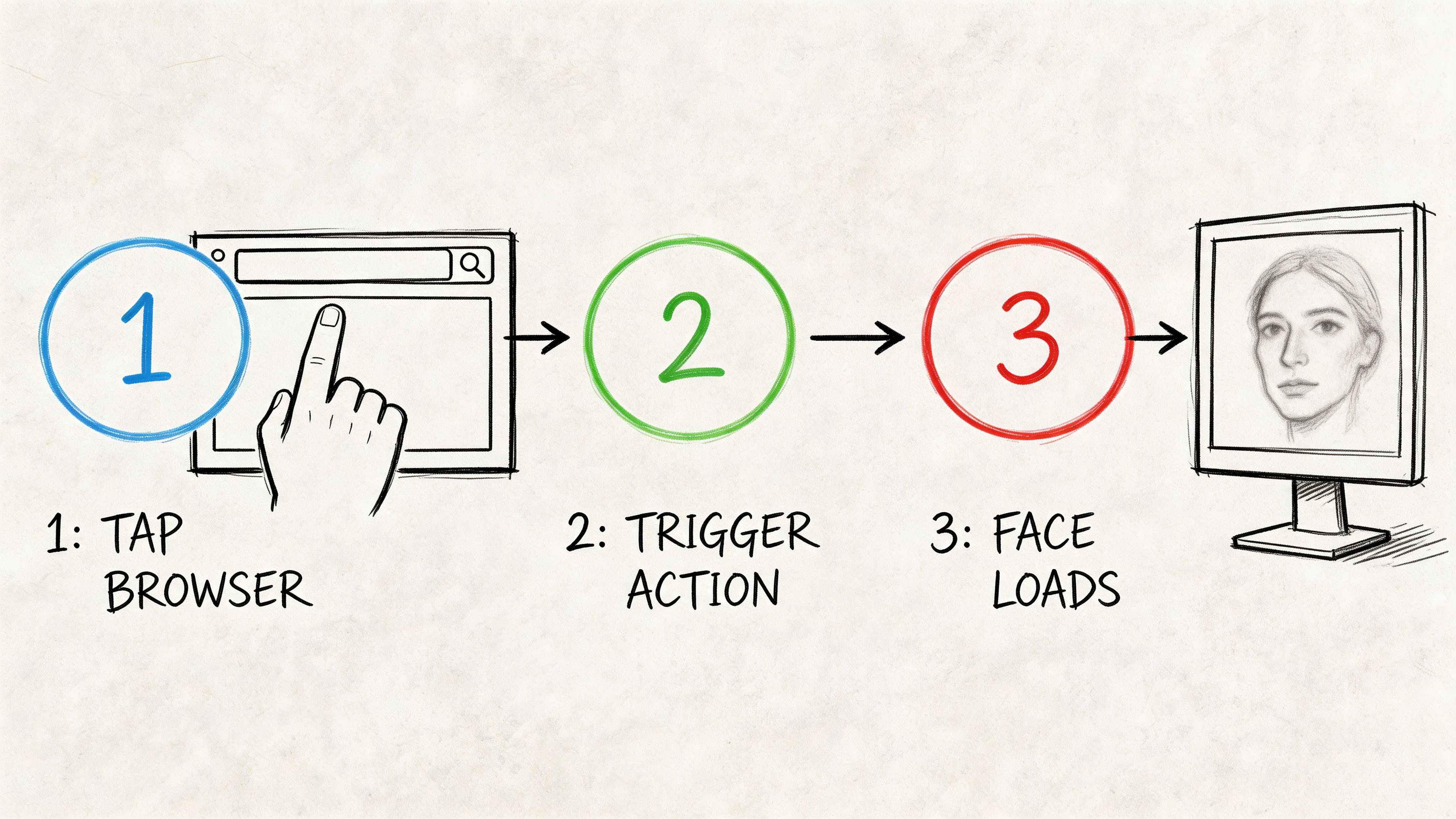
Upload your media securely
Start from the original file in the browser—not a chain of phone-to-desktop relays that multiply versions. The first pass should be automatic: upload runs, face detection returns usable selections quickly enough that review stays part of the normal publishing flow.
Review detections on the canvas
Detection saves time; review protects you from preventable exposure. Keep, remove, resize, or add regions for missed faces and non-face identifiers: laptop screens, ID badges, license plates, paperwork, reflections.
Check these failure modes first:
- Partial or edge-of-frame faces — profiles, obstructions, subjects entering frame late.
- Secondary identifiers — monitors, addresses, vehicle plates, uniforms.
- Video tracking — scrub occlusions, turns, and overlapping subjects; masks must stay aligned.
Professional review is a control step, not a formality. AI reduces manual work; it does not decide what is safe to publish.
Choose the right effect
Match the effect to disclosure risk: soft blur for lower-risk branded content; pixelation when you need an obvious redaction signal; solid masking for documents, screens, or maximum obscuration. Mixed redaction (faces + screens + plates) is common in one file—pick a tool that supports it in a single pass.
Export the anonymized file
Export at the resolution and format your downstream CMS, legal queue, or client delivery expects. Run a last pass on dense frames, motion segments, and non-face identifiers before you treat the job as done.
A practical three-step standard
| Phase | What to do | What can go wrong |
|---|---|---|
| Upload | Add original media in-browser | Extra transfers create delay, version mix-ups, and exposure risk |
| Review | Confirm detections and fix misses on the canvas | Missed faces or visible identifiers slip through if teams trust automation too quickly |
| Export | Save at required quality and format | Compression or wrong format can force a return to the unredacted original |
Gaussian blur vs pixelation vs solid masking
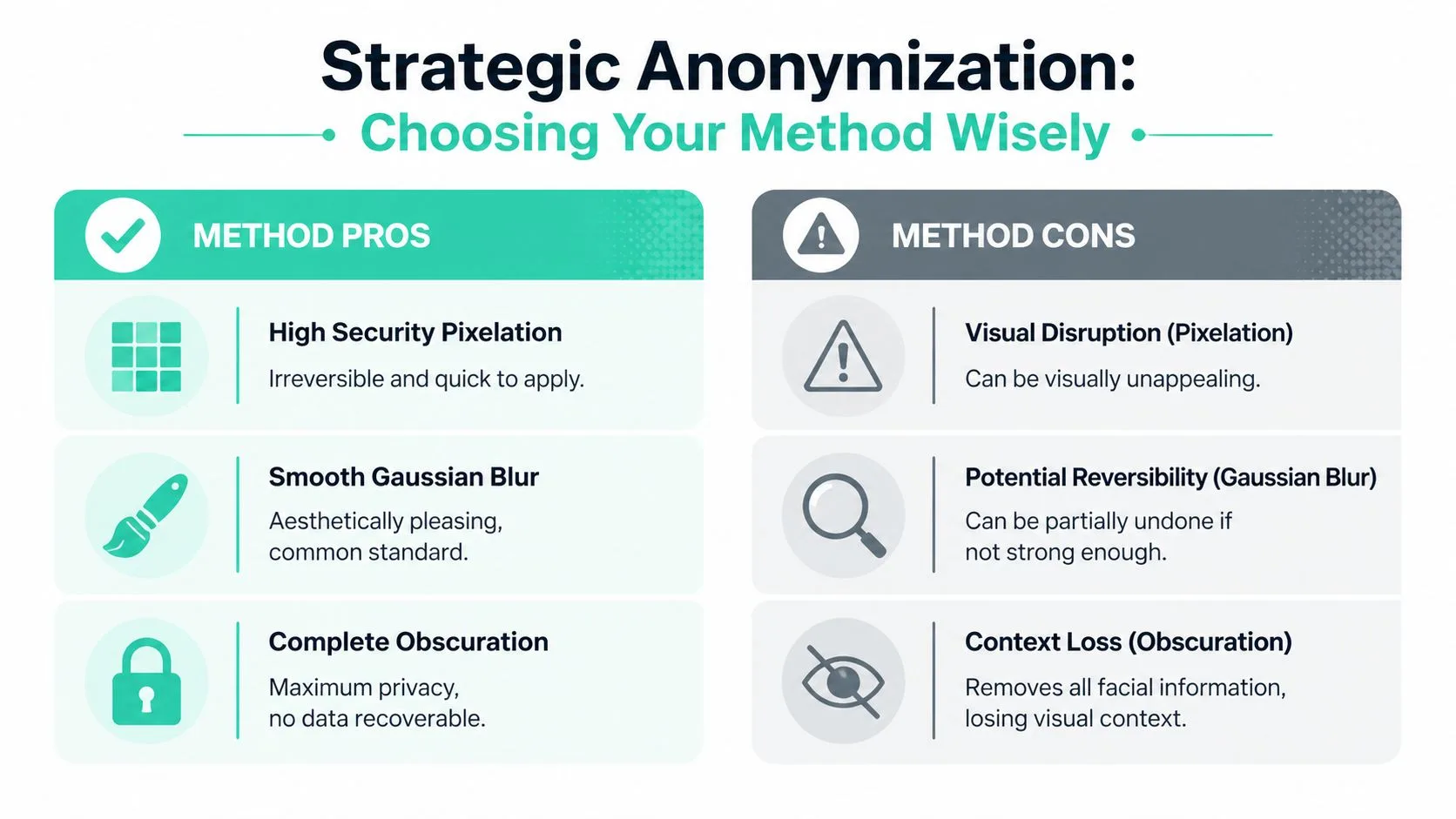
Not every effect does the same job. Professionals usually choose among Gaussian blur, pixelation, and solid masking—each balances polish, recognizability, and operational safety differently.
Gaussian blur
Soft blur looks clean and often fits branded content. Its weakness is that a light blur can preserve too much structure—hairline, jaw context, or cues that still matter in sensitive work.
Pixelation
Pixelation reads instantly as intentional identity protection—common in editorial and documentary workflows. The trade-off is visual harshness on polished commercial footage.
Solid masking
Full cover is the most direct option when the goal is strong redaction (legal review, internal evidence, source protection). You lose facial context; the audience may notice the mask more.
| Method | Best fit | Main advantage | Main drawback |
|---|---|---|---|
| Gaussian blur | Marketing, light privacy | Cleaner finish | Can be too weak if applied lightly |
| Pixelation | Journalism, public redaction | Clear protection signal | More visually disruptive |
| Solid masking | Compliance, high-risk | Maximum obscuration | Removes visual context |
Use the weakest method only when risk is genuinely low. If stakes are high, pick the method you would still trust after the file leaves your hands.
Selective treatment—keeping one subject sharp while anonymizing everyone else—works for street interviews and promos where consent is limited to one participant; still verify background identifiers.
Batches, video tracking, and hybrid QA
Volume exposes weak workflows fast. Sort media by risk and review pattern: crowd stills, sit-down interviews, body-worn exports, and CCTV should not share the same blind checklist.
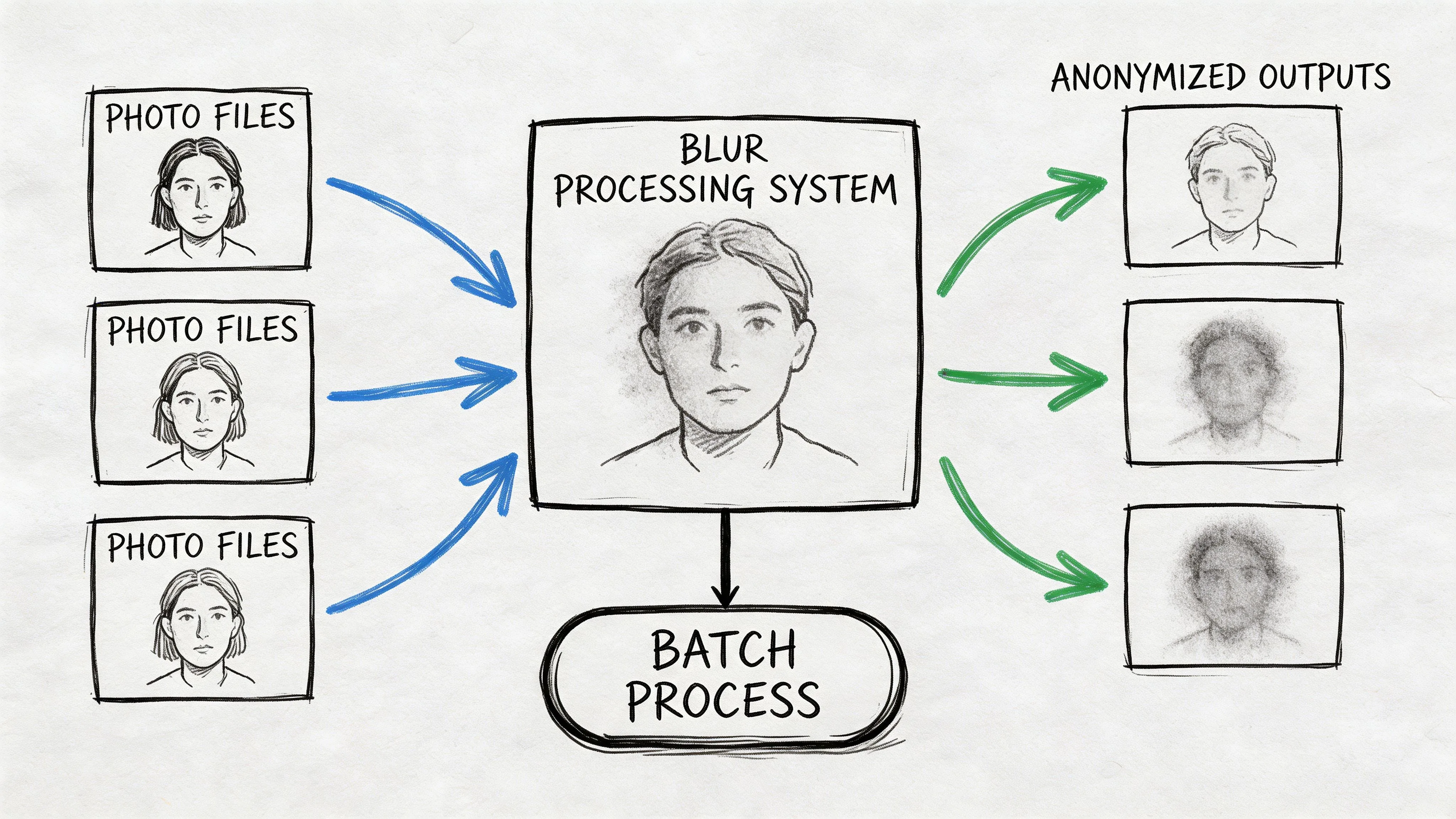
Process large jobs in batches
Group files that share the same anonymization rule, review known trouble cases first (profiles, low light, helmets, glasses), and export into a folder structure that separates redacted copies from originals.
Handle moving faces and tricky objects
Video adds occlusions, motion blur, and compression artifacts. Treat automatic tracking as a first pass, then manually correct slips—especially for plates, badges, screens, and desk documents that carry disclosure risk even when faces are covered.
Hybrid workflow: AI first, manual second
- Run detection across the batch to clear obvious cases.
- Use canvas tools on edge cases and non-face identifiers.
- Review the exported file, not only the editor preview.
- Keep one house standard per content class so exports stay consistent.
Journalism, compliance, and consumer tools
Consumer blur apps were built for posting. Regulated work needs a repeatable process: consistent redaction choices, clear handling of originals, and review ownership before disclosure.
Why one-tap mobile blur is not always enough
Newsrooms, legal teams, and public authorities usually need more than a quick social filter: they need to know where media is processed, how long files persist, and whether the workflow can be repeated case after case. Browser tools reduce friction without reintroducing a patchwork of unmanaged exports.
Compliance as a disclosure problem
Subject-access requests and investigations often require sharing footage while protecting third parties in the same frame. That means anonymizing everyone who is not entitled to be identified, separating originals from releasable copies, and documenting review.
Security: layered anonymization and automation
Weak blur is not the same as privacy. Research on de-obfuscation—summarized by Biometric Update—showed neural networks could defeat common blurring and mosaic approaches in several experimental settings. The lesson is practical: combine method choice, intensity, coverage size, and QA on the exported file instead of trusting a light default.
What browser-side detection changes
When analysis runs locally in the user’s browser, you reduce unnecessary exposure during the identification stage—fewer hops before you even start redacting. You still want encrypted transport, clear retention rules, and any server-side processing documented to match your risk model.
When an API becomes infrastructure
Once anonymization is routine, manual uploads stop scaling. A REST API can push images or videos through redaction before moderation, storage, or external disclosure—fewer ad hoc edits, more consistent outputs across pipelines.
Conclusion: fast, reviewable, browser-first
The workable standard is no longer “desktop precision or mobile speed.” A modern blur face app can combine automatic detection, canvas refinement, and strong export controls in the browser—so anonymization stays inside publishing, disclosure, and moderation workflows instead of becoming a last-minute patch.
Frequently asked questions
For professional use, prioritize tools with automatic detection, canvas review, multiple effects (blur, pixelation, mask), and clear export controls. Blurit Studio runs in the browser and handles both photos and videos without installing desktop software.
Blurring helps reduce identifiability, but compliance depends on the full workflow: lawful basis, data minimization, retention, who can access originals, and whether other elements in frame still identify people. Treat the app as part of a process, not a legal guarantee.
Use desktop NLEs when you need heavy creative finishing on a few master files. Use a browser blur face app when many contributors need the same fast path, batches are common, and you want consistent detection plus review before export.
Pixelation and solid masking usually remove more facial structure than a soft blur. For sensitive identities, prefer stronger methods and verify the exported file at its final viewing size.
Yes—profiles, motion blur, compression, and occlusions are common miss cases. Treat automation as a first pass, then scrub critical segments and re-check after export.
Related guides: blur a face in photos and videos · how to censor a video online · how to pixelate a video online.