

Blur a Face: Quick & Easy Photo/Video Anonymization
You've got a usable clip, a publishable photo, or a piece of evidence you need to share. Then you notice the faces. That's the point where "just add a blur" stops being a design choice and turns into a privacy decision. For a social post, a training video, a documentary cut, or CCTV footage, the method matters.
When people search for how to blur a face, they usually get editing steps. What they often don't get is the reason one method is safer than another, or why a blur that looks strong on your screen can still leave someone identifiable. That trade-off matters more now because re-identification doesn't depend only on the face itself — hair, body shape, clothing, movement, and context all leak identity.
This guide is practical on purpose. It covers the fast browser workflow, the familiar desktop-editor route, and the heavier batch or API path for teams handling volume. It also explains what works, what fails, and when you should stop using blur and switch to stronger anonymization.
Why Blurring a Face Is More Than Just an Effect
You might be holding footage from a street interview, a school event, a corporate training session, or a security camera export. The content is useful. The visible face is the problem.
A lot of people still treat face blurring like a cosmetic effect. It isn't. It's an anonymization method, and weak anonymization creates real exposure — for the person in the frame and for the team publishing it.
Basic blur often fails
The biggest mistake is assuming that if a face looks fuzzy to a human viewer, it's safe. That assumption doesn't hold up.
A Max Planck Institute study found that with just 10 visible examples of a person's face, a recognition system could identify a blurred image with 91.5% accuracy. That should reset how you think about blur.
Practical rule: If the footage is sensitive, treat standard face blur as a starting point, not proof of anonymity.
Privacy law cares about the outcome
GDPR and similar privacy frameworks don't care that you tried. They care whether personal data remains identifiable.
That's why the safest workflows focus on irreversibility, limited file retention, secure processing, and evidence that the workflow itself was designed for privacy.
Choose the method by risk, not habit
In practice, there are three common ways to blur a face:
- Browser-based AI tools when you need speed, automatic detection, and minimal setup.
- Desktop editors like Premiere Pro, Final Cut Pro, or Photoshop when you need hands-on control.
- Batch or API workflows when you're processing large volumes or embedding anonymization into a product or pipeline.
The Fastest Method: Instant AI Face Blurring in Your Browser
A producer gets a clip at 4:40 p.m. It needs to publish before 5, and two bystanders in the background should not be identifiable. In that situation, the browser workflow is usually the fastest safe option.
The practical browser workflow
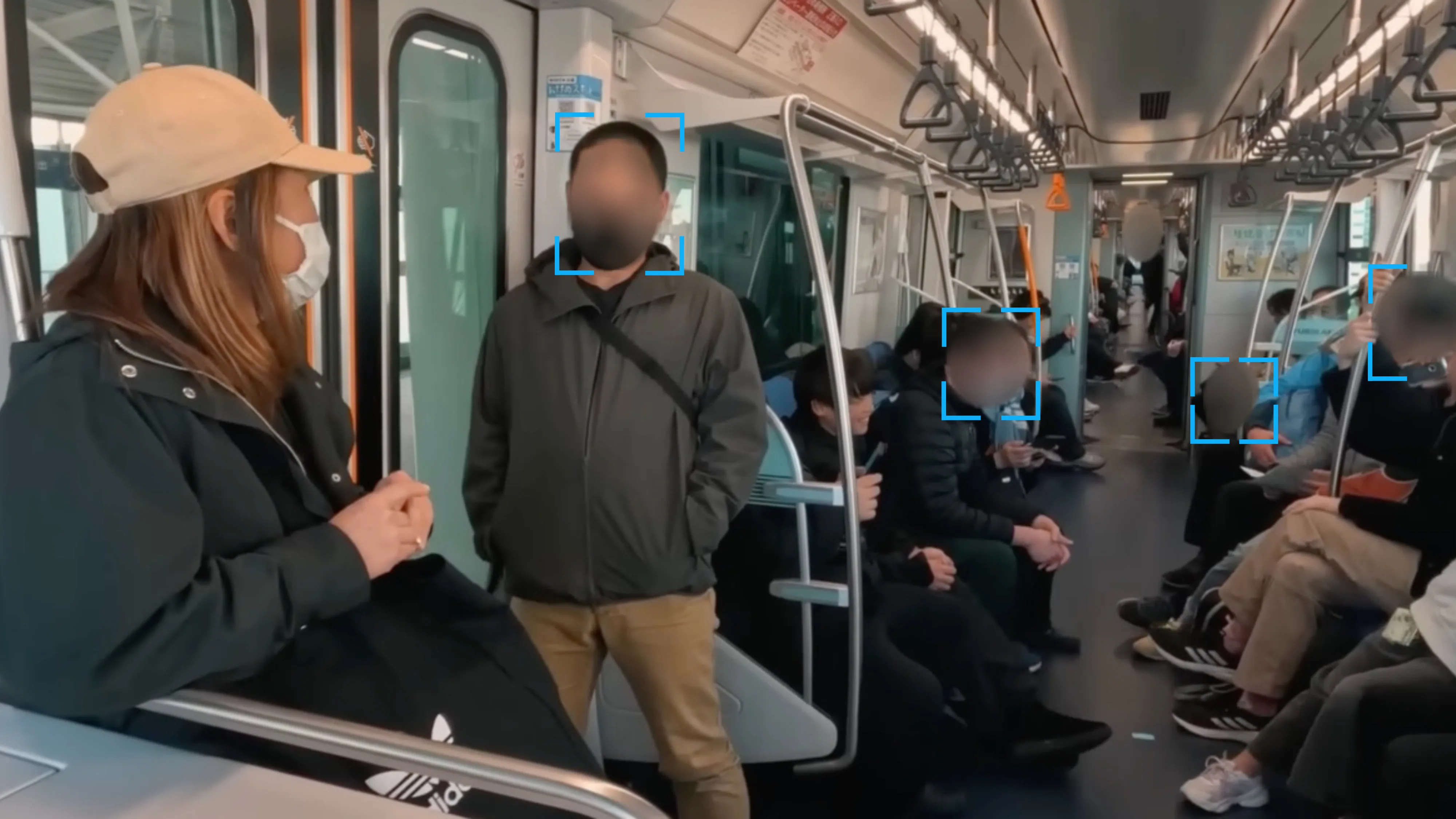
- Upload the photo or video — Start with the original file when possible. Better source quality improves detection.
- Run automatic detection — The system scans for faces, and in some workflows other sensitive objects too.
- Review every detection — Check side profiles, partially blocked faces, reflections, people at the edge of frame.
- Choose the right effect for the risk — Blur is fast and often acceptable for low-risk use. Pixelation or a solid mask is usually better when identification would create legal or safety exposure.
- Export after checking motion — In video, review movement rather than trusting a single still frame.
Why browser tools are faster in real production
The time savings are practical, not theoretical. You skip software installs, plugin issues, proxy generation, and the manual work of drawing and correcting masks.
| Use case | Why browser tools fit |
|---|---|
| Social content teams | Fast turnaround for short clips and stills that need quick review before publishing |
| Newsrooms | Quick anonymization when deadlines are tight and the task is privacy protection |
| Corporate teams | Training, internal communications, and review workflows where installing editing software is overkill |
| Field journalists | Move from capture to review quickly on whatever machine is available |
| Compliance reviews | Focus on whether identities are still exposed instead of spending time building masks by hand |
Manual Face Blurring in Photo and Video Editors
A lot of people first learn to blur a face in tools they already know: Photoshop, Premiere Pro, Final Cut Pro, DaVinci Resolve.
What manual blurring involves
In a still image, the process is straightforward: draw a mask around the face, add Gaussian blur or mosaic pixelation, feather the edges if needed, and export.
In video, the workload rises fast:
- Create a mask over the face
- Choose the effect
- Track motion so the mask follows the subject
- Correct drift when the tracker slips
- Repeat for every additional person
The core weakness of face-only blurring
A controlled experiment found that identification success with face blur was 70%, compared with 74% for unblurred photos. People don't identify someone only from facial detail — they use hair, body shape, clothing, and scene context too.
Blurring the face but leaving the rest of the person untouched can protect appearance without protecting identity.
Comparing Your Face Blurring Options
| Method | Speed | Control | Privacy posture | Scale | Best fit |
|---|---|---|---|---|---|
| AI browser tools | Fast | Moderate to high | Good if the service has clear controls | Good | Creators, journalists, compliance |
| Desktop software | Slow to moderate | High | Depends on the operator | Limited | Editors handling a few files |
| Command-line processing | Fast after setup | Moderate | Good if configured carefully | Strong | Technical users processing batches |
| API workflow | Fast at volume | High in system design | Strong in controlled workflows | Strong | Products, newsrooms, security, enterprises |
Try AI blurring on your own images
Upload a clip or photo, let Blurit detect faces and export — no credit card to get started.
Open Blurit StudioBest Practices for Irreversible Anonymization
Blur versus pixelation versus masking
Gaussian blur — Common because it looks smooth and is easy to apply. Acceptable for light privacy needs, but weak for high-risk footage.
Pixelation — Usually signals anonymization more clearly and can destroy facial detail more aggressively than a soft blur.
Solid masking — A full black or white mask over the face. The most conservative option.
The blur paradox
The so-called blur paradox shows that blurry faces can be easier to recognize at smaller sizes or greater distances. In one study, over 80% of participants recognized blurry faces better from farther away than up close.
Don't judge anonymization at 200% zoom only. Check the image at playback size, thumbnail size, and mobile size.
Cover more than the face
- Include hair and ears when those are distinctive
- Extend to head and shoulders for sensitive footage
- Hide uniforms, badges, and logos if they narrow identity
- Mask reflections in windows, mirrors, and screens
- Check background documents for names or addresses
Match the method to the risk
| Risk level | Typical use case | Safer choice |
|---|---|---|
| Low | Casual public content | Moderate blur or pixelation after review |
| Medium | Internal training, HR, corporate comms | Strong pixelation or expanded blur region |
| High | Journalism, minors, health, legal, security footage | Full masking or the most conservative anonymization available |
Advanced Workflows: Programmatic and Batch Processing
Once you move beyond a handful of clips, manual anonymization becomes a staffing problem. That's where batch processing and API-based workflows earn their place.
When to move from manual to programmatic
| Signal | What it means |
|---|---|
| You process media regularly | The time lost to manual work will keep growing |
| Multiple people handle the same task | Consistency becomes harder to maintain |
| The content is sensitive | You need stronger process control |
| You need repeatability | The workflow should work the same way every time |
| You're building a product | Anonymization should happen inside the product logic |
Blurit offers batch processing and API capabilities designed for these teams — automatic detection, review, export, all from the browser or via integration.
FAQ — Blurring Faces
If the goal is mild visual obscuring, blur can work. For stronger anonymization, pixelation or masking is usually safer.
Use a selective mask, not a global effect. In a browser workflow like Blurit, review detections and apply the effect only to the chosen subject.
Not always. If the person is identifiable by hair, uniform, posture, tattoos, or context, expand the anonymization region.
Yes, but be careful about what app you trust and what happens to the file. For professional privacy work, use a workflow that gives you clear control over processing and deletion.
Next step: anonymize your photos and videos without installing software — Blurit.app offers a browser-based workflow with AI detection for faces, plates, and other sensitive objects, plus blur, pixelation, and masking options for fast anonymization.