

How to Make a Highlight Video That Gets Noticed: A Practical Guide
A great highlight video isn't just a random smash-cut of your best clips. It's a story. And the best stories always start with a plan.
This is the one thing that separates a flat, amateurish reel from a final cut that actually gets someone's attention. It's all about moving from a pile of raw footage to a polished, captivating video with a clear purpose.
From Raw Footage to a Captivating Final Cut: Your Step-by-Step Plan
Think of a highlight video as a storytelling tool, not just a container for clips. It's built to grab attention and deliver a message—fast. You could be cutting a sports reel for a college scout, a marketing promo for a new product, or even just a personal keepsake from a family trip. The goal is the same: boil down hours of footage into a few powerful minutes.
Before you even think about opening your editing software, you need to think like a director. What's the point of this video?
- What's the core message? Are you trying to show off athletic prowess, demonstrate a product's value, or capture the feeling of an event?
- Who is the audience? A college recruiter watches a video differently than a potential customer scrolling through social media.
- What do you want them to feel? Should the video be high-energy and exciting? Emotional? Inspiring?
Nailing these answers gives you a roadmap. Every decision you make from here on out—from which clips you pick to the music you choose—will support that initial vision.
To help visualize the workflow, we can break down the entire process into three core production stages. This structure keeps you focused on what matters at each step.

This flow shows how a strong strategy in the Plan phase directly informs the hands-on work in the Edit and Polish phases.
To give you a clearer overview, here's a quick look at the main objectives and actions for each phase of production.
Highlight Video Production Phases at a Glance
| Phase | Key Objective | Crucial Action |
|---|---|---|
| Plan | Define the story and goals | Identify the target audience and core message |
| Edit | Build the video's structure | Assemble the best clips and pace the narrative |
| Polish | Refine the final output | Add music, color grade, and polish transitions |
This table summarizes the journey from a basic concept to a share-worthy final product. Each phase builds on the last, ensuring a cohesive and impactful result.
The Power of Brevity in 2026
Modern audiences have no time for fluff. Your video has to earn every second of their attention.
Video marketing trends for 2026 are clear: 71% of marketers report that short-form videos deliver the best results. The average video length is expected to drop to just 39 seconds. Videos under one minute can hit an impressive 50% engagement rate, proving that less is often more.
You can dig into the numbers yourself by checking out the full 2026 video marketing report. This data isn't just a trend—it's a clear signal that a tight, focused story is absolutely essential for any highlight video you create.
Building Your Story from Raw Footage: A Practical Workflow
A killer highlight video isn't made in the edit bay. The real work starts way before you make a single cut, back when you're staring at a mountain of raw footage. This is where you shift from being a camera operator to a storyteller.

The first move is to organize your clips into a library of powerful moments. This process, known in the industry as footage logging, is your single best defense against feeling completely overwhelmed by your own material. It means watching everything and taking smart notes.
Don't just write down what happens. Create a simple system that works for you—a spreadsheet or even a physical notebook is fine—and get specific.
How to Log Your Footage Effectively
Logging turns a chaotic folder of files into a searchable database of story beats. It's like creating a card catalog for your footage, so you can find exactly what you need when you need it.
Here's a practical step-by-step guide to logging:
- Create a Spreadsheet: Open a new sheet in Google Sheets or Excel. Create columns for
Clip Name,Start Time,End Time,Description, andTags. - Watch Everything: Play each video file from beginning to end.
- Timestamp Key Moments: When you see something great, pause and log it. Note the exact start and end times. For example:
01:32-01:35. In the description, writePlayer scores a goal.This saves you from scrubbing through clips later. - Categorize by Action: In the
Tagscolumn, use descriptive keywords that make sense to you. "Tackle," "customer unboxing," "B-roll shot," or "CEO soundbite" are all great examples. - Tag by Emotion: What does the clip feel like? Add context with tags like "tense," "funny," "inspirational," or "high energy."
Going through this process forces you to internalize your footage. You'll start editing the video in your head long before you even launch your software.
The golden rule here is simple: quality over quantity. A single, powerful 10-second clip is worth more than two minutes of forgettable footage. Your job is to be a ruthless curator.
A great sports highlight isn't just the touchdown; it's the incredible catch that made it possible. A powerful marketing video isn't just the product; it's the genuine look of surprise on a user's face. These are the moments you're hunting for.
Create a Paper Edit to Build Your Narrative
With your best clips identified, resist the urge to jump straight into your timeline. Instead, build a paper edit. This is just a written outline of your video, shot by shot, away from the technical distractions of your editing program.
Your paper edit can be a simple numbered list. For each point, write down the clip's filename, the timestamp you logged, and a quick note on why it's there. This blueprint is the secret weapon of efficient editors, saving you hours of aimless clip-shuffling and guesswork. It's the foundational work that makes a highlight video truly connect.
Alright, you've sorted through your footage and picked out the gold. Now comes the fun part: stitching it all together in the timeline. This is where you move from being a collector of clips to a storyteller, building a rhythm that pulls your viewer in from the very first second.
Your first job is to land a knockout punch. Seriously. The first 3-5 seconds of your video are the most valuable real estate you have. Don't waste them on a slow-fade or a title card. Grab your single most powerful clip—the unbelievable goal, the jaw-dropping landscape, the raw, unfiltered moment of joy—and put it right at the start. Hook them immediately, and they'll stick around for the rest.

Once you've got their attention, your focus needs to shift to pacing. Pacing is the heartbeat of your edit. It controls the energy and guides the viewer's emotional journey. Not every clip deserves the same amount of screen time.
Master Your Pacing and Transitions: A Practical Guide
Think of your video's rhythm as a conversation. You can't just shout the whole time. You need moments of high energy, but you also need to give your audience a moment to breathe and absorb what they're seeing.
Here's how to take control of that rhythm:
- Use Quick Cuts for Energy: When you're building an action sequence or a montage set to a driving beat, lean on short clips and fast cuts. This creates a sense of excitement and momentum that's perfect for a series of sports plays or an event recap. Try it: Cut a series of 1-2 second clips back-to-back to match the beat of your music.
- Let Key Moments Breathe: For the emotional peaks or the big reveals, give the shot some space. A longer, lingering take of 4-6 seconds lets the impact of the moment really sink in for the viewer. Don't be afraid of a little silence.
Transitions are what glue these moments together. And while your software is packed with flashy star wipes and dissolves, the most powerful transition is usually the one nobody notices. A clean hard cut—just switching instantly from one shot to the next—is your best friend. It's sharp, clean, and keeps the story moving forward. Save the more stylized transitions for when you need to signal a clear shift in time, location, or mood.
A great edit feels intentional. Every single cut, every transition, and the length of every clip should serve a purpose in telling your story and making the viewer feel something.
How AI Can Speed Up Your Workflow
Let's be honest: wading through hours of footage to build that first assembly cut can be a real slog. This is where modern editing tools have become a game-changer. AI is no longer a futuristic buzzword; it's a practical assistant that's rapidly changing how we edit. As of 2025, a solid 51% of video marketers are already using AI in their creation or editing process. It's also leveled the playing field, allowing 50% of small businesses to create pro-level content that was once impossible without a huge budget. If you want to dive deeper into the numbers, there are some great video marketing statistics from recent research that paint a clear picture.
So how does this help you? Many editing platforms now have AI features that can scan your media bin and automatically flag the most compelling moments. These tools can identify action peaks, recognize faces, and even analyze shot composition to suggest a sequence of your best clips.
This can generate a decent rough cut in a matter of minutes, giving you a fantastic starting point to build from. The goal isn't to let the AI take over completely. It's about using it to handle the most tedious part of the job so you can jump straight to the creative part: refining the story, tweaking the timing, and adding that human touch.
Polishing Your Video with Audio, Color, and Effects
A good edit tells the story, but a great edit makes you feel it. This final stage is all about transforming your rough assembly into something that feels professional and intentional. It's where you layer in the sound, color, and subtle effects that truly elevate your highlight video.

We're going to start with sound, because it's arguably half the experience. The right audio choices can completely define the mood and energy of your video before the viewer even processes what they're seeing.
Mastering Your Audio Mix: A Step-by-Step Guide
Think of music as the emotional engine of your highlight reel. A driving electronic track builds hype for a sports compilation, while a thoughtful piano score can add a heartfelt layer to a wedding or family montage.
Here's a practical workflow for getting your sound right:
- Find Your Music: Start by choosing a track from a licensed source. Is it licensed? Always use royalty-free music to avoid copyright strikes. Services like Epidemic Sound or the free YouTube Audio Library are your best friends here.
- Edit to the Beat: Place the song on your timeline first. Look at the audio waveform and identify the song's key moments—the beat drops, crescendos, and quiet parts. Align your most impactful video cuts with these audio cues.
- Mix Your Levels: Once your edits are locked, balance the audio. The music is there to support the visuals, not overpower them. If your clips include important dialogue or natural sounds, you need to "duck" the music—lowering its volume during those key moments to let the primary audio shine through.
- Add Sound Effects (SFX): Add a final layer of polish with sound design. A subtle swoosh added to a fast transition or a soft thud on an impact makes the on-screen action feel much more physical and engaging.
Unifying Your Look with Color
Just as audio sets a consistent mood, color creates a consistent visual identity. This process is split into two distinct jobs: color correction and color grading.
Color correction is the technical fix. It's about correcting problems—adjusting clips that are too dark or too bright and balancing the white balance so that white actually looks white. The main goal here is to make all your clips, which were likely shot in different lighting conditions, look uniform and natural.
Color grading is where the artistry comes in. This is where you apply a specific style or "look" to your entire video. You might add a warm, golden hue to a travel video to evoke a sense of sunny nostalgia. Or maybe you use a cool, desaturated palette for a more serious, cinematic feel.
A simple, effective way to get a consistent look is to use a LUT (Look-Up Table). Think of a LUT as a sophisticated color filter you can apply across all your clips. It instantly gives your highlight video a professional, cohesive style.
Most modern video editors come with built-in LUTs, and you can find thousands more online, both free and paid. This step is what makes a project look truly polished and intentional.
To help you keep track of these final touches, here's a quick reference table.
Audio and Visual Polish Checklist
| Element | Goal | Pro Tip |
|---|---|---|
| Music | Establish the video's mood and pace. | Choose a track that complements the on-screen action without overpowering it. Listen to it with your footage before you commit. |
| Sound Mixing | Ensure all audio is clear and balanced. | Lower the music volume by 6–12 dB during dialogue or key sound moments to make sure they are heard clearly. |
| Color Correction | Create a uniform, natural look across all clips. | Use your editor's scopes (like a waveform monitor) to adjust exposure and white balance so all clips match one another. |
| Color Grading | Apply a creative, stylistic look. | Use a LUT to give your video a consistent and professional color palette. Apply it after you've corrected your clips. |
By dedicating time to these final details—sound, color, and effects—you add a layer of quality that separates an amateur video from a truly great one.
Sharing Your Video with Privacy and Quality in Mind
Okay, your highlight video is edited and looks great. But don't hit "publish" just yet.
Getting your video ready for the world means thinking about two final, critical things: protecting the people in it and making sure it looks amazing on any screen. Before you upload, you have to think responsibly about who's featured in your footage.
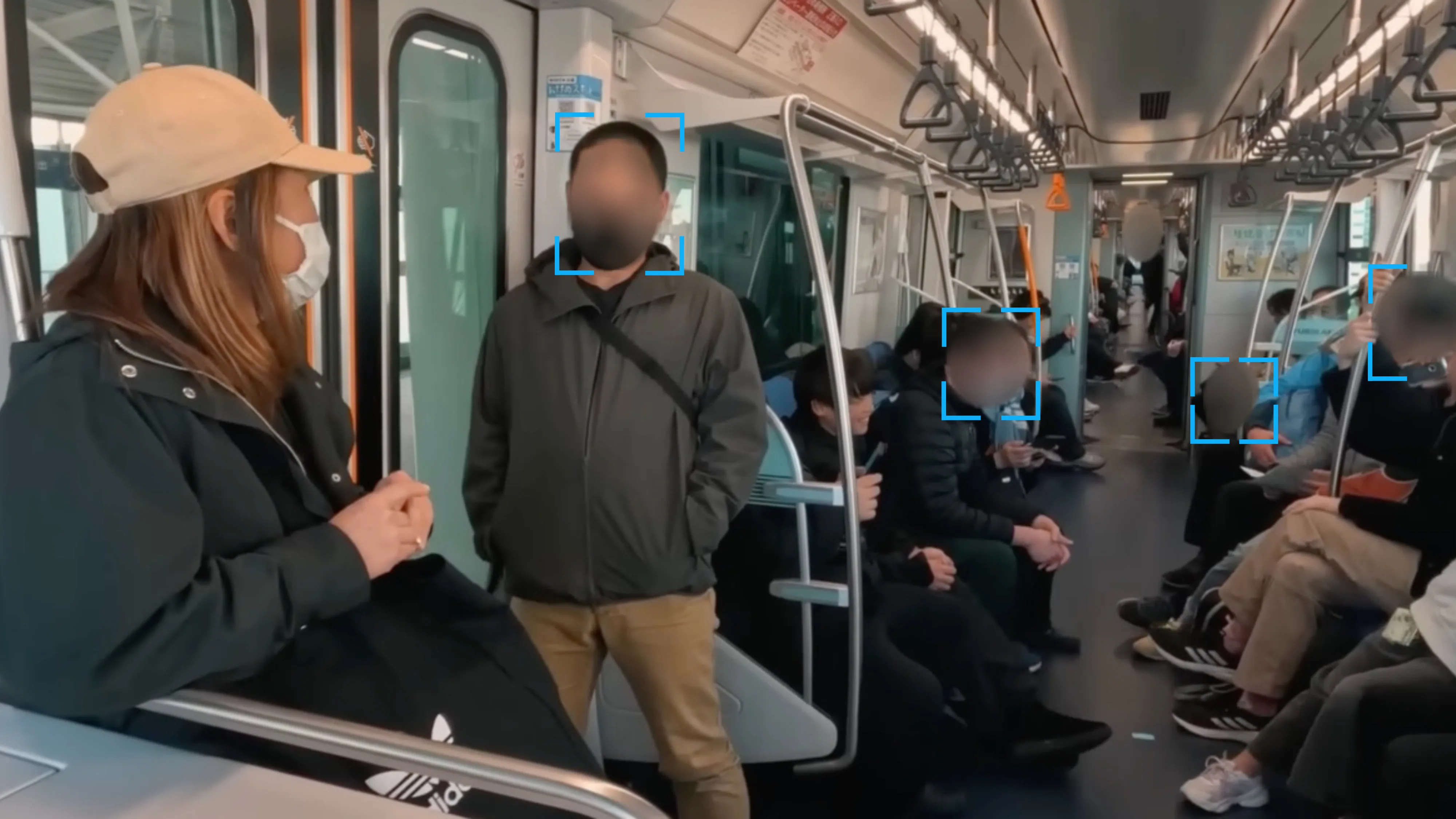
Whether you're a journalist protecting a source, a business using customer testimonials, or a coach sharing game film of minors, blurring faces is often an ethical—and sometimes legal—requirement. In a world saturated with video, privacy has become a non-negotiable part of the process.
The sheer volume of video content is staggering. By 2026, video is expected to make up 82% of all internet traffic. At the same time, 91% of businesses now rely on video for marketing, an all-time high. You can dig deeper into how video marketing trends are shaping business on mackmediagroup.com.
This explosion means more eyes on your work, but it also brings more responsibility. You need tools that deliver both creative polish and airtight privacy.
Protecting Identities with Smart Anonymization
Manually blurring moving faces or license plates is a nightmare. It's a tedious, frame-by-frame process that's incredibly easy to mess up. This is where modern AI tools are a game-changer, saving you hours of frustration.
Browser-based services like Blurit use AI to handle the heavy lifting automatically, letting you anonymize sensitive footage in minutes, not hours.
Before you upload anything sensitive, review the provider's privacy policy and processing terms: many AI workflows involve cloud processing, retention, and subprocessors that matter for GDPR and internal security policies.
Here's a practical guide to using an AI blurring tool:
- Upload Your Video: Drag and drop your final video file into the browser-based tool.
- Run AI Detection: The software scans your video and instantly identifies faces, license plates, or other objects you need to hide.
- Review and Select: The tool will show you all detected faces. Deselect anyone you have permission to show, while keeping others marked for anonymization.
- Choose Your Effect: Select the right look for your project, whether it's a standard blur, heavy pixelation, or a solid black box.
- Process and Download: The tool renders a new, anonymized version of your video, ready for you to share.
This automated approach gives you the confidence to share your video, knowing you've respected the privacy of everyone involved.
Sharing responsibly is about more than just dodging legal issues. It's about building trust. Taking the time to properly anonymize your footage shows respect for your subjects and your audience.
Choosing the Right Export Settings for Every Platform
With privacy handled, the last step is exporting your video. Your export settings are the bridge between your editing timeline and the final viewer, and getting them wrong can ruin all your hard work with a pixelated, unprofessional-looking result.
The right settings always depend on the destination. A 4K video for a YouTube channel has very different needs than a quick, vertical clip for an Instagram Reel.
Common Export Settings (A Practical Recipe):
| Setting | Recommendation | Why It Matters |
|---|---|---|
| Codec | H.264 (or AVC) | This is the gold standard for web video. It provides the best mix of high quality and small file size, guaranteeing your video will play almost anywhere. |
| Resolution | 1080p (1920x1080) | For most online platforms, 1080p is the sweet spot. It looks sharp and professional without creating a huge file that's slow to upload or buffer. |
| Bitrate | 10-15 Mbps for 1080p | Bitrate directly controls video quality and file size. A higher bitrate looks better but makes the file bigger. This range is a perfect target for platforms like YouTube. |
Nailing these settings ensures your video looks crisp and clean, whether it's viewed on a phone or a desktop monitor. It's the final technical check that guarantees your audience sees your work exactly as you intended.
Quick Answers to Common Highlight Video Questions
Alright, even with the best game plan, a few questions always sneak in when you're putting together a highlight video. It's totally normal.
Let's tackle the big ones I hear all the time so you can skip the guesswork and get back to creating something awesome.
How Long Should My Highlight Video Be?
Keep it short. Seriously. The sweet spot for almost any highlight video is between 1 and 3 minutes. For social media or a college recruitment tape, shorter is almost always better.
Viewer attention spans aren't what they used to be. Videos under 60 seconds consistently crush it in terms of engagement. Your job is to grab them in the first 10 seconds with your absolute best clip and never let go.
If you're sitting on a mountain of great footage, don't try to cram it all into one video. Split your approach:
- The Teaser: A high-energy, sub-60-second cut perfect for Instagram, TikTok, or Shorts.
- The Full Reel: A more detailed 2-3 minute version that lives on your YouTube channel or portfolio website.
What's the Best Editing Software for a Beginner?
The "best" software is the one that doesn't make you want to throw your computer out the window. You absolutely do not need to drop hundreds of dollars to make a professional-looking video.
Honestly, some of the free tools available today are incredible. For anyone just getting their feet wet, I'd point you toward:
- DaVinci Resolve: The free version is a full-blown professional editing suite. It's insanely powerful and more than enough for most creators.
- CapCut: King of mobile editing. If your video is destined for social media, this is a fantastic, intuitive choice.
- Clipchamp: Already built into Windows, it's a super user-friendly, browser-based editor that gets the job done without a steep learning curve.
Down the line, you might want to look at industry standards like Adobe Premiere Pro or Final Cut Pro. But for now? The free options are all you need.
Do I Really Need to Worry About Music Copyright?
Yes. 100% yes. This is the one area where you cannot cut corners.
Slapping your favorite pop song onto your video without a license is a recipe for disaster. Best case scenario? Your video gets muted or taken down. Worst case? You're looking at demonetization or even legal trouble. It's just not worth the risk.
The only safe music is music you have the rights to use. Sourcing it from a legitimate library protects your work and ensures it stays online.
Invest in a subscription to a royalty-free service like Epidemic Sound or Artlist. Or, for a completely free option, check out the YouTube Audio Library. This one simple step will save you from a world of headaches.
When Should I Blur Faces or Sensitive Info?
You need to anonymize your footage any time you're showing someone who hasn't given you clear permission to be there, or when you need to comply with privacy laws like GDPR. Forgetting this can turn a great video into a legal or ethical nightmare.
Think about blurring in these common scenarios:
- Minors are visible and you don't have explicit consent from a parent or guardian.
- Bystanders are caught in the background of your public shots.
- You're protecting the identity of a sensitive source for a news or documentary piece.
- License plates, addresses, or other personal data appear on screen.
For a fast, reliable way to handle this, an AI-powered tool like Blurit can automatically find and anonymize faces, license plates, and other objects for you in just a few clicks. It's the perfect final check to ensure you can share your video responsibly and without worry. Learn more about adding professional-grade privacy protection to your videos at https://blurit.app.