

Convert AVI to MP4 online (free): simple guide + mistakes to avoid (2026)
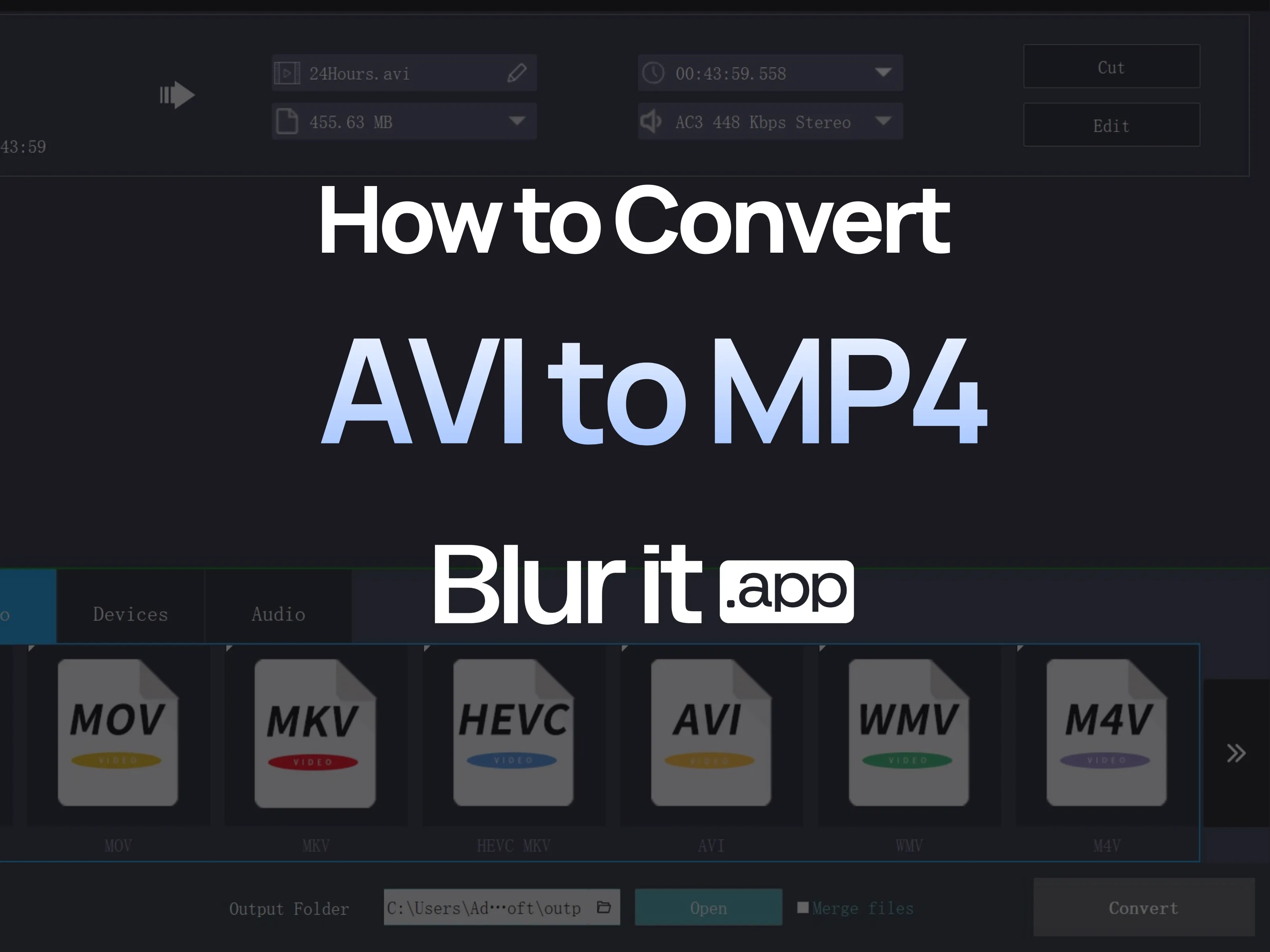
Convert AVI to MP4 online (free)
You found an old video in AVI format and your phone won't play it? Or you want to share it on WhatsApp but the file is too large? The solution: convert your AVI to MP4, the universal format readable everywhere.
This guide explains how to do it simply, for free, and without installing any software.
Why convert AVI to MP4?
The AVI format (Audio Video Interleave) dates back to the 90s. Although it was very popular, it now presents several problems:
- Incompatibility: Modern smartphones often don't play AVI
- Large file size: AVI files are generally heavier
- Difficult sharing: WhatsApp, Instagram, TikTok don't accept AVI
- No streaming: AVI doesn't support web streaming well
MP4 (H.264) has become the universal standard:
- Readable on all devices
- Efficient compression (lighter files)
- Preserved quality
- Accepted by all platforms
Mistakes to avoid during conversion
Mistake 1: Using a site with too many ads
Some free converters display dozens of ads and can install unwanted software. Choose a clean, reputable site.
Mistake 2: Ignoring size limits
Most free online converters limit file size (often 100-500 MB). Check before uploading.
Mistake 3: Choosing too low resolution
To save time, some tools lower quality by default. Keep the original resolution if possible.
Mistake 4: Forgetting aspect ratio
A bad conversion can distort the image (stretched or squashed video). Check the result before deleting the original.
Mistake 5: Neglecting privacy
Your files are uploaded to servers. Avoid sending very personal videos to unknown sites.
Best solutions to convert AVI to MP4
Solution 1: Online converters (free)
For small files (less than 500 MB), online converters are convenient:
- CloudConvert: Clear interface, many formats
- Zamzar: Simple and fast
- Online-Convert: Advanced options available
Advantages: No installation, free
Disadvantages: Size limits, uncertain privacy
Solution 2: Free software (for large files)
For large files, local software is preferable:
- HandBrake: Free, open source, very complete
- VLC: Yes, VLC can also convert videos!
- FFmpeg: Command line, very powerful
Advantages: No size limit, privacy
Disadvantages: Installation required, sometimes complex interface
Solution 3: Blurit.app (conversion + anonymization)
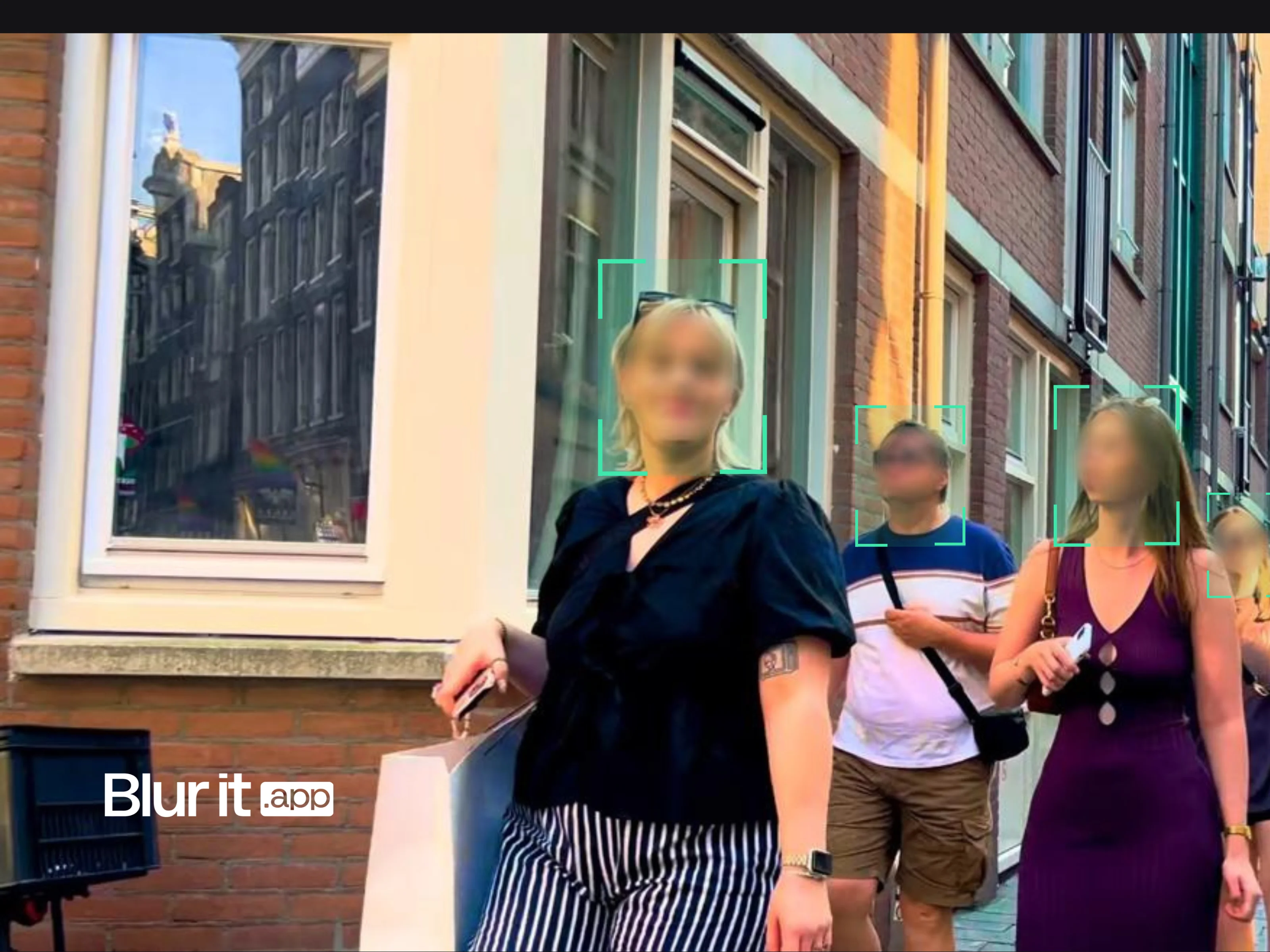
If you need to convert AND anonymize (blur faces or plates), Blurit.app does both in one operation.
Advantages: Conversion + automatic blurring, 100% online
Disadvantages: Focused on anonymization (not just pure conversion)
Tutorial: convert with HandBrake (free)
- Download HandBrake from handbrake.fr (free)
- Open your AVI file: File > Open source
- Choose the preset: "Fast 1080p30" for a good compromise
- Check the format: MP4 should be selected
- Click "Start encoding"
- Wait for completion: Duration depends on file size

Solution comparison
| Solution | Max size | Installation | Price | Blurring |
|---|---|---|---|---|
| CloudConvert | 1 GB (free) | No | Free/Paid | No |
| HandBrake | Unlimited | Yes | Free | No |
| VLC | Unlimited | Yes | Free | No |
| Blurit.app | 10 GB | No | Free / €9/month | Yes (AI) |
Conclusion
Converting an AVI file to MP4 is simple with the right tools. For small files, an online converter is enough. For large files or regular use, install HandBrake.
What if you also need to blur faceså
If your video contains identifiable people and you want to anonymize them at the same time as converting, Blurit.app does both in one operation.
Try Blurit.app for free — Conversion + automatic blurring, 100% online.
Note: This guide presents several solutions. Choose the one adapted to your needs and file sizes.