

Blur a Video Like a Pro: AI & Manual Tools

You have footage that cannot go out as-is.
For a privacy-first workflow in the browser, Blurit.app and Blurit Studio combine automatic detection with client-side processing, optional Ephemeral mode, and high-quality export—so you can anonymize without sending raw footage through unrelated third-party pipelines.
Maybe it is a street interview with bystanders in the background. Maybe it is CCTV headed to legal review. Maybe it is product footage that accidentally captured a name badge, a license plate, or a document on a desk. In all of those cases, you do not just need an effect. You need a defensible anonymization workflow.
That changes how you blur a video.
A casual editor thinks about visual style. A privacy-aware editor thinks about identification risk, tracking consistency, export permanence, and whether the tool itself creates a compliance problem. That is why the same blur feature can be acceptable for a social clip and inadequate for journalism, internal investigations, or public-sector footage.
Why You Need to Blur a Video Today
Blurring matters because raw footage often leaks more than many teams realize.
A face is obvious. A plate is obvious too. But people also get identified through office signs, addresses in the background, computer screens, visitor badges, storefronts, and distinct objects tied to a place or person. One missed detail can turn “anonymized” footage into exposed footage.
Blur is a privacy tool, not just an editing effect
In professional use, blurring protects people and preserves footage value at the same time.
You still want the sequence to make sense. Security teams need context. Journalists need the scene. Marketers need usable visuals. The point is not to destroy the image. The point is to remove the part that creates risk while keeping the rest readable.
The most common method is Gaussian Blur, which applies a mathematical filter that mixes adjacent pixels so details like faces or license plates become unrecognizable while the overall frame stays intact. Its use expanded alongside digital surveillance and online publishing; research on human visual perception and GDPR-era practice has pushed professional workflows toward stronger, more consistent anonymization—not just a stylistic filter, but a repeatable privacy control.
The stakes are different now
A creative blur on a music video can be loose. A privacy blur cannot.
The risk is not only reputational. It can be legal, operational, or ethical. If your footage includes people in public, a protected source, staff members in a restricted area, or vehicle data tied to a location, the edit becomes part of your risk control process.
What works in practice is simple:
- Use blur when you need context: Keep the scene visible while hiding identity.
- Use stronger redaction when the object must not be inferable: Documents, screens, and unique items often need more than a soft effect.
- Track movement accurately: A blur that slips off the subject for even a few frames defeats the point.
- Think about the toolchain: If footage is sensitive, where it gets processed matters almost as much as how it gets blurred.
Practical rule: If the footage would create a problem when viewed frame by frame, treat anonymization as a production requirement, not a finishing touch.
Good anonymization feels boring on purpose
The best blur job is not flashy.
Viewers should understand the scene and stop noticing the effect after a few seconds. If they are staring at unstable masks, inconsistent blur strength, or badly feathered edges, the edit looks amateur and may still fail to conceal the subject.
That is why professionals care less about novelty and more about consistency. When people search how to blur a video, they often get tutorials aimed at style. What they need is a repeatable method that protects identity without damaging the rest of the clip.
Deciding What to Anonymize in Your Footage
Before you start masking—whether in a desktop timeline or in Blurit Studio—audit the footage.
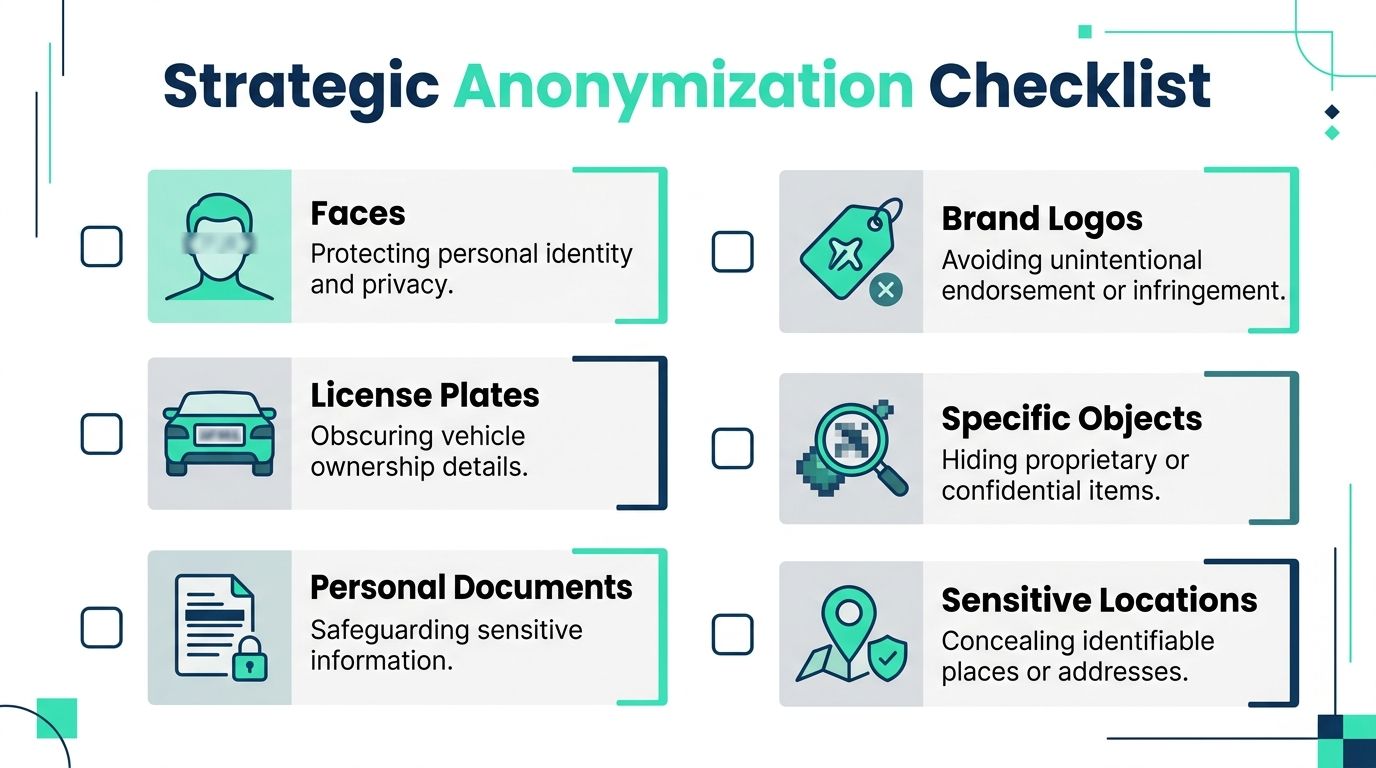
Most mistakes happen at this stage. Editors focus on the main subject and miss secondary identifiers in the frame. A strong anonymization pass starts with a checklist, not a filter.
Start with direct identifiers
These are the obvious targets.
- Faces: Newsrooms, documentary teams, and security operators blur faces when identity itself creates risk.
- License plates: These can reveal ownership, movement, and location patterns.
- Name badges and ID cards: Easy to miss in corporate or event footage.
- Documents and screens: A monitor in the background can expose more than the speaker in the foreground.
If a viewer can pause the frame and read it, treat it as sensitive.
Then look for indirect identifiers
Experienced reviewers often catch what others miss here.
A location can identify a person. A uniform can reveal an employer. A visible storefront, school sign, apartment number, or interior layout can narrow a person down even if the face is blurred. In branded content, a competitor logo or third-party trademark may also need treatment, not for privacy reasons alone, but to avoid unwanted associations in the final edit.
A practical audit by use case
Different teams should scan for different risks.
| Workflow | Usually blur | Often overlooked |
|---|---|---|
| Journalism | Faces, plates, source materials | Street signs, reflections, building names |
| Marketing | Bystanders, logos, documents | Laptop screens, whiteboards, packaging |
| Security and CCTV | Faces, plates, access badges | Entry codes, patrol routes, workstation displays |
| Legal and compliance review | Any personally identifying detail | Context clues that reveal location or employer |
Decide what must stay visible
Not everything should be blurred.
A common mistake is over-redaction. If you blur half the frame, the footage becomes less useful and less credible. A documentary interview may need the room and body language to remain visible while only the face is obscured. A street scene may need all ambient action preserved except specific bystanders. Security footage often needs movement and timing intact while identities are anonymized.
That means your decision is not only what to hide, but also what must remain clear for the footage to do its job.
Key takeaway: Blur the smallest area that removes the risk. Wider masks are safer only until they start removing context you need later.
Build a pre-edit checklist
Use this before every sensitive export:
- Pause through the clip frame by frame: Fast review misses reflections and screens.
- Check the background separately from the subject: Most leaks happen behind the action.
- Review opening and closing frames: Subjects often enter or leave the mask area there.
- Watch once with audio off: Visual distractions become easier to spot.
- Have someone else review the final pass: Fresh eyes catch details you have normalized.
Match the blur target to the reason
This keeps your choices defensible.
If the goal is privacy, target identities and traceable context. If the goal is legal caution, also review branding, confidential materials, and location clues. If the goal is internal safety, focus on restricted infrastructure, procedures, or sensitive equipment shown in the background.
People searching “blur a video” often want a button. In practice, the first real skill is deciding what deserves treatment before you touch the controls.
Manual Masking vs Automated AI Detection
A reporter needs to publish bodycam footage by deadline. A security team has hours of lobby video to share with outside counsel. A developer is preparing training data that cannot expose faces or plates. All three need the same outcome, but they do not need the same workflow.
Manual masking and automated AI detection serve different operational needs. The right choice depends on clip length, subject count, motion, review requirements, and whether your process has to stand up to legal or compliance scrutiny.
Manual masking gives you frame-level control
Manual work still sets the standard for difficult footage.
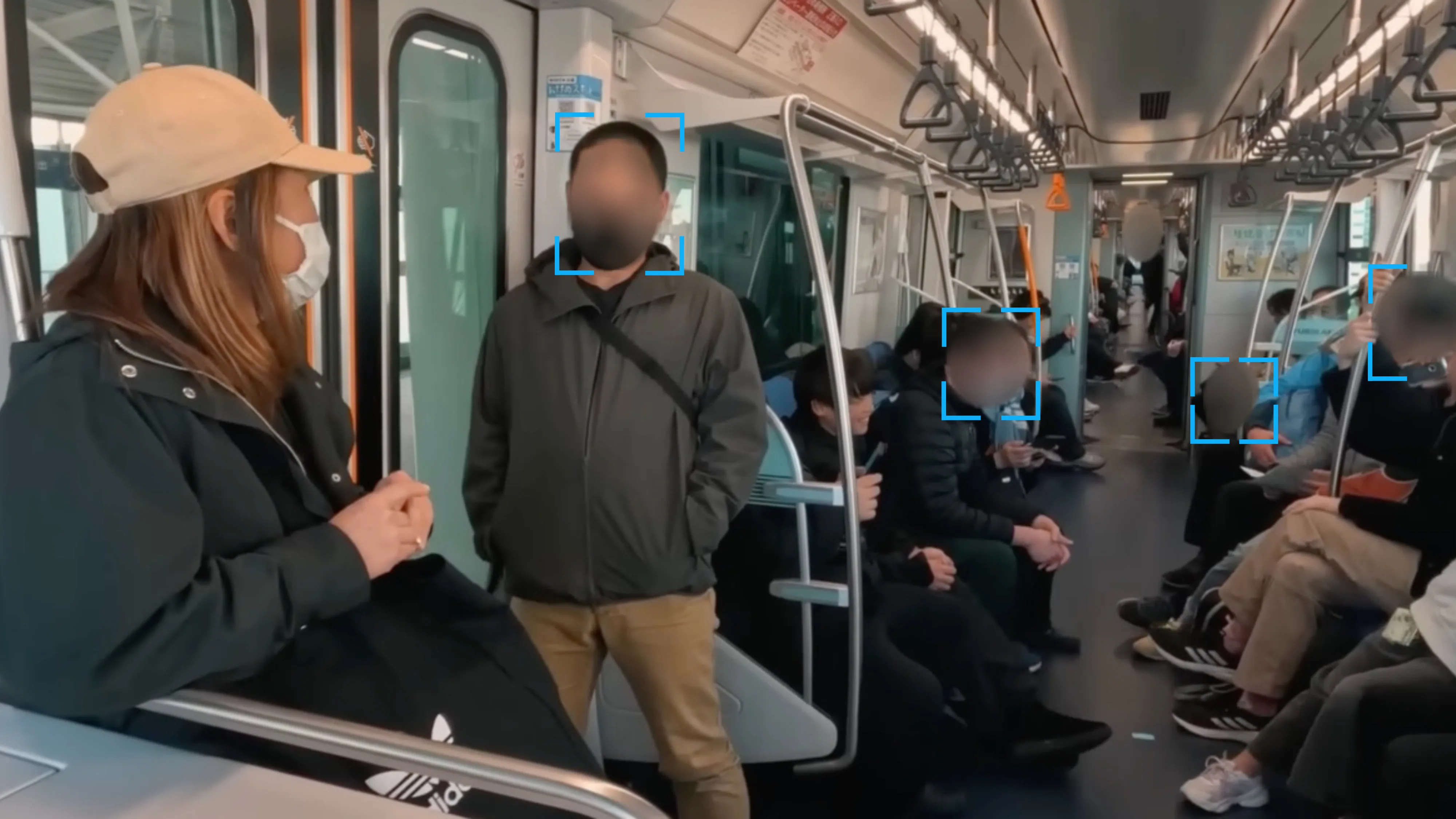
In a traditional desktop timeline, the process is familiar: apply Gaussian Blur, draw a mask around the face, plate, badge, or screen, then keyframe that mask so it stays locked as the shot changes. Static masks fail once the subject or camera starts moving—which is why tracking, review, and baked exports matter as much as the effect itself.
That workflow is slow, but it handles cases automation often misses:
Partial occlusion A face moves behind another person, a door frame, or a windshield reflection.
Irregular targets A lanyard badge flips, a logo appears on wrinkled fabric, or a document enters frame at an angle.
Short, high-risk exposures A plate is visible for half a second. A hospital monitor flashes patient details. A human editor can catch context that a detector may not classify correctly.
Defensible editorial decisions Journalists and legal teams often need to justify why one subject was obscured and another was left clear. Manual masking supports that review better than a black-box first pass.
The cost is time. Every camera move, profile turn, and cut adds correction work. On a single interview clip, that is manageable. On an hour of crowded street footage, it becomes production drag.
Automated detection changes the job from drawing to reviewing
AI detection is most useful when the footage contains repeated, recognizable targets and the priority is throughput.
Instead of building every mask from scratch, the software detects faces, plates, or other common objects, creates tracks, and gives the editor a first pass to inspect. That changes the labor profile. Less time goes into drawing shapes. More time goes into reviewing misses, fixing false positives, and checking whether the blur stays effective on difficult frames.
Blurit runs in the browser with client-side processing—a strong fit for journalists, security teams, and developers who cannot casually upload sensitive footage to unknown servers. Open Blurit Studio to run detection on your clip and review tracks before export.
Automation is usually faster on:
- CCTV and dashcam footage
- interviews with stable framing
- newsroom intake with many short clips
- bulk anonymization before archiving, sharing, or model training
It is less reliable on footage with heavy motion blur, extreme angles, crowded scenes, reflections, infrared video, or objects that only briefly resemble a face or plate.
See Blurit Studio on your own footage
Automatic face and license-plate detection, review, then export—without installing a suite.
Open Blurit StudioThe primary trade-off is review time versus correction time
Manual masking concentrates effort upfront. You build the mask, track it, and know exactly what the edit is doing.
AI detection shifts effort to quality control. The software gets you close on common targets, but a reviewer still has to inspect entries, exits, occlusions, side profiles, and frames where the subject is small or partly hidden.
For professional anonymization, that distinction matters.
| Method | Strength | Weakness | Best fit |
|---|---|---|---|
| Manual masking | Precise control over difficult or unusual subjects | Slow on long clips and crowded scenes | Investigations, legal review, documentary edits, sensitive one-off footage |
| AI detection | Faster first pass on repeated anonymization tasks | Requires review for misses, drift, and false positives | Security video, newsroom workflows, developer datasets, bulk processing |
What works in production
Hybrid workflows are often effective for many teams.
Use AI to create the first pass when footage is repetitive or time-sensitive. Then switch to manual correction for edge cases, failed tracks, and anything with legal or privacy risk if exposed for even a frame. That approach keeps throughput high without handing final judgment to automation.
A few failure points show up repeatedly:
- Manual masks without tracking updates let the subject slip outside the blur.
- AI detections without human review leave misses in the export.
- Weak blur strength on high-resolution close-ups leaves identity cues visible after pause-and-zoom review.
- Over-masking removes context that investigators, editors, or downstream reviewers may need.
I treat automation as triage, not approval. If the footage could affect safety, legal exposure, or source protection, every track still gets reviewed before export.
Choose the workflow that matches the risk
Short, high-stakes clips usually justify manual work. Large queues, recurring footage types, and operational deadlines usually justify automated detection with human review layered on top.
The important distinction is not old tools versus new tools. It is whether your method gives you enough precision for the footage you have, enough speed for the volume you face, and enough review control to defend the result later.
Applying the Right Blur and Exporting for Impact
Once the target is identified and tracked, the next decision is visual treatment.
Not every concealment method does the same job. Some preserve context well. Others communicate redaction more clearly. Picking the wrong one can either expose too much detail or make the footage harder to use.
Choose the effect for the risk
Gaussian blur is the default for a reason. It softens detail while keeping the rest of the frame natural. For faces and plates in general-purpose footage, it is usually the cleanest option.
Pixelation looks more overtly censored. It can work for social content or when you want the audience to immediately register that something was intentionally hidden. It is less elegant, but sometimes that is the point.
Solid masking is closer to redaction than blur. Use it when the content under the mask should not be visually interpretable at all, such as a document, screen region, or unique object.
Strength matters more than style
A subtle blur that looks nice but leaves a subject recognizable is a bad edit.
The blur has to survive pausing, zooming, and frame-by-frame review. In practical terms, test your result the way an outside viewer would. Stop on a clear frame. Scrub slowly. Check side angles and profile views. Rewatch on a larger monitor if possible.
A professional result usually has these traits:
- Consistent size: The blur fully covers the subject through motion.
- Reasonable feathering: Hard edges draw attention, but overly soft edges can leak detail.
- Stable tracking: No popping, lagging, or drifting.
- Selective coverage: The frame stays useful because only the risky area is treated.
Export for permanence, not just playback
Export is where many otherwise solid anonymization jobs go wrong.
If you export at poor settings, you can create ringing, edge breakup, or compression artifacts around the blurred region. If you keep editable project files with linked originals in the wrong place, you can also undermine the operational side of anonymization even if the visible export looks fine.
A safer approach is:
Render at the original resolution when possible Do not introduce extra softness across the whole frame if you can avoid it.
Preserve quality in the final encode Heavy compression can make masked areas look unstable.
Review the exported file, not just the timeline Some issues only appear after encoding.
Treat the export as the shareable master Keep internal access to raw footage restricted.
Practical rule: If the anonymized result is the version that leaves your team, validate that exact file before delivery. Timeline confidence is not enough.
Keep the footage useful
This is the balance professionals care about most.
The ideal export hides sensitive details permanently while preserving motion, timing, scene context, and enough visual quality for the clip’s purpose. Security footage still needs to be reviewable. Journalism still needs credibility. Marketing still needs polish.
When you blur a video well, viewers understand what happened without learning who should stay protected.
Advanced Blurring for Compliance and Scale
Basic tutorials usually stop at the effect.
That is not enough for organizations handling sensitive footage repeatedly. Newsrooms, public-sector teams, legal departments, and developers need workflows that stand up to privacy requirements and operational volume. The question is no longer “Can we blur this clipå” It is “Can we do it safely, repeatedly, and without building a backlog?”
Compliance is about the whole workflow
A blurred face does not automatically mean compliant handling.
If the footage is uploaded to a service with the wrong processing model, stored longer than necessary, or passed around without clear controls, your visual edit may still sit inside a weak privacy process. That is why browser-side processing and deletion options matter in some environments.
Many teams discover that compliance is a workflow problem, not only a filter problem: if processing happens on the wrong infrastructure, if raw files linger without retention rules, or if exports are not reviewable, the prettiest blur still sits inside a weak privacy process. That is why features like browser-side processing, Ephemeral mode, and clear export discipline matter for GDPR-class use cases.
Blurit is designed for that posture—fast detection and review, client-side processing, and options teams can explain to security and legal stakeholders. Compare capacity on the pricing page when you move from experiments to production volume.
What professional teams should look for
If the footage is sensitive, review these points before adopting any tool:
- Processing model: Browser-side or otherwise privacy-conscious handling reduces unnecessary exposure.
- Deletion controls: Ephemeral workflows matter when teams should not retain source media after export.
- Infrastructure and hosting posture: Security teams and compliance officers will care where and how data is handled.
- Auditability: A workflow should be explainable to stakeholders, not just usable by editors.
This is why a “free online blur tool” can be a poor fit even when the blur itself looks acceptable.
Scale changes the workflow design
An individual editor can tolerate some manual work.
An organization handling many files cannot. Once footage arrives daily, the bottleneck shifts from editing skill to system design. Teams need consistent intake, reliable detection, rapid review, and the ability to process multiple files without opening every project manually in a desktop timeline.
That often leads to three operational patterns:
Batch review queues
Editors or analysts validate automated detections across many clips rather than building every mask from scratch. This is the fastest way to keep humans focused on exceptions.
API-driven anonymization
Developers integrate blur and redaction into internal products, upload flows, moderation systems, or evidence pipelines. That removes repeated manual steps and reduces tool switching.
Edge or controlled deployments
Some organizations need stricter control over where processing happens. In those cases, deployment model matters as much as feature list.
Tip: If your team blurs the same kinds of objects every week, stop optimizing for editing convenience and start optimizing for review throughput.
Speed, precision, and compliance are not equal priorities
A newsroom facing deadline pressure may accept more manual cleanup after AI detection because speed matters first.
A legal team may prefer slower review if chain-of-handling questions are more important than turnaround. A public-sector CCTV operation may care most about volume and repeatability. The right workflow depends on the pressure point.
That is why “how to blur a video” is too small a question for many organizations. The harder question is how to build a process that protects identities without slowing the team down or creating avoidable data handling risk.
What tends to fail in enterprise settings
The same issues appear repeatedly:
- Desktop-only dependence: Fine for one editor, weak for distributed teams.
- No batch path: Every clip becomes a custom project.
- No review discipline: Automated detections go out unchecked.
- No retention logic: Raw files remain accessible longer than intended.
- Creative-tool mindset: The team gets effects, but not a privacy workflow.
Professionals need more than a blur slider. They need a system that turns anonymization into a repeatable operational step.
Frequently Asked Questions About Blurring Videos
Can a blurred or pixelated video be reversed
Sometimes people ask this as if there is a universal yes or no.
In practice, the answer depends on how strong the anonymization is, how much original detail remains, and whether the final file preserves enough information to infer identity. Weak blur is risky. Incomplete masks are risky too. For sensitive footage, use stronger anonymization, review frame by frame, and export a final rendered file rather than sharing editable timelines.
Does blurring hurt video quality
It affects the blurred region by design, but it should not ruin the whole clip.
A good export keeps the unblurred parts clear and stable. The bigger risk is poor encoding after the blur has been applied. If compression is too aggressive, edges around the treated area can look messy. Always review the exported file, not just the preview inside the editor.
What is the fastest way to blur faces in many videos
For high volume, automated detection with human review is the practical answer.
Manual masking works, but it does not scale well when you have many clips or long recordings. Teams handling repeated anonymization jobs should use Blurit Studio for automatic detection, review, and export—with client-side processing that fits stricter privacy rules.
Is blurring faces in public footage legally required
That depends on jurisdiction, purpose, and how the footage will be used.
There is no universal rule that applies to every scenario. But as a working standard, if a person can be identified and you do not need that identity visible, blurring is often the safer choice. Legal teams also care about context, retention, and where the footage is processed, not only what the final frame looks like.
Should I use blur, pixelation, or a black box
Use Gaussian blur when you want the scene to remain natural.
Use pixelation when clear visual censorship is acceptable or preferred. Use solid masking when the hidden material should not be visually interpretable at all, such as documents, screens, or highly sensitive objects.
Is manual masking still worth learning
Yes.
Even if AI handles the first pass, manual correction is still how you fix difficult angles, occlusions, brief appearances, and unusual objects. The strongest workflow is not manual or automated. It is automated where possible, manual where necessary.
Next step: blur a video without a heavy desktop install—use Blurit.app and Blurit Studio for automatic detection on faces, license plates, and sensitive regions, with client-side processing, optional Ephemeral mode, and high-quality export. Check pricing for team plans and volume.