

9 Best Apps to Blur Background in Photos & Videos (2026)
You have the shot. The subject looks good. Then you notice the background. A stranger is visible behind your interview guest. A house number is readable in the corner of a property photo. A laptop screen in the background shows something that should never leave the office. Sometimes you want blur for style. Sometimes you need it for privacy. Those are two different jobs, and the wrong app usually shows it.
Want the fastest route? Use the free blur video background tool — AI keeps the subject sharp, no watermark.
Need to hide people rather than scenery? You can also blur faces online with the same AI engine.
That's why a simple roundup of apps to blur background isn't enough. You need to know which tools are built for fast social content, which ones give frame-by-frame control, and which ones are safer when the footage includes faces, plates, documents, or anything that could identify a person.
The category has grown fast since mobile portrait mode went mainstream with the iPhone 7 Plus in 2016, and by 2023 the global photo editing app market reached an estimated $500 million in revenue, with top apps drawing 85 million monthly active users. That growth makes sense. Blurring is now a routine edit for creators, marketers, journalists, and legal teams.
The practical split is simple. If you're polishing a quick post, you want speed and decent subject detection. If you're editing commercial video, you want tracking, masks, and control over edges. If you're anonymizing sensitive material, you need irreversible blur or pixelation, careful exports, and a workflow that won't create new privacy problems.
Below are the tools separated by job: web apps for speed and access, desktop tools for precision, and mobile-friendly options when turnaround matters more than deep control.
1. Blurit
Blurit fits a specific job. Use it when the background contains information that should stay hidden after export — not when you just want a softer portrait look for a post.
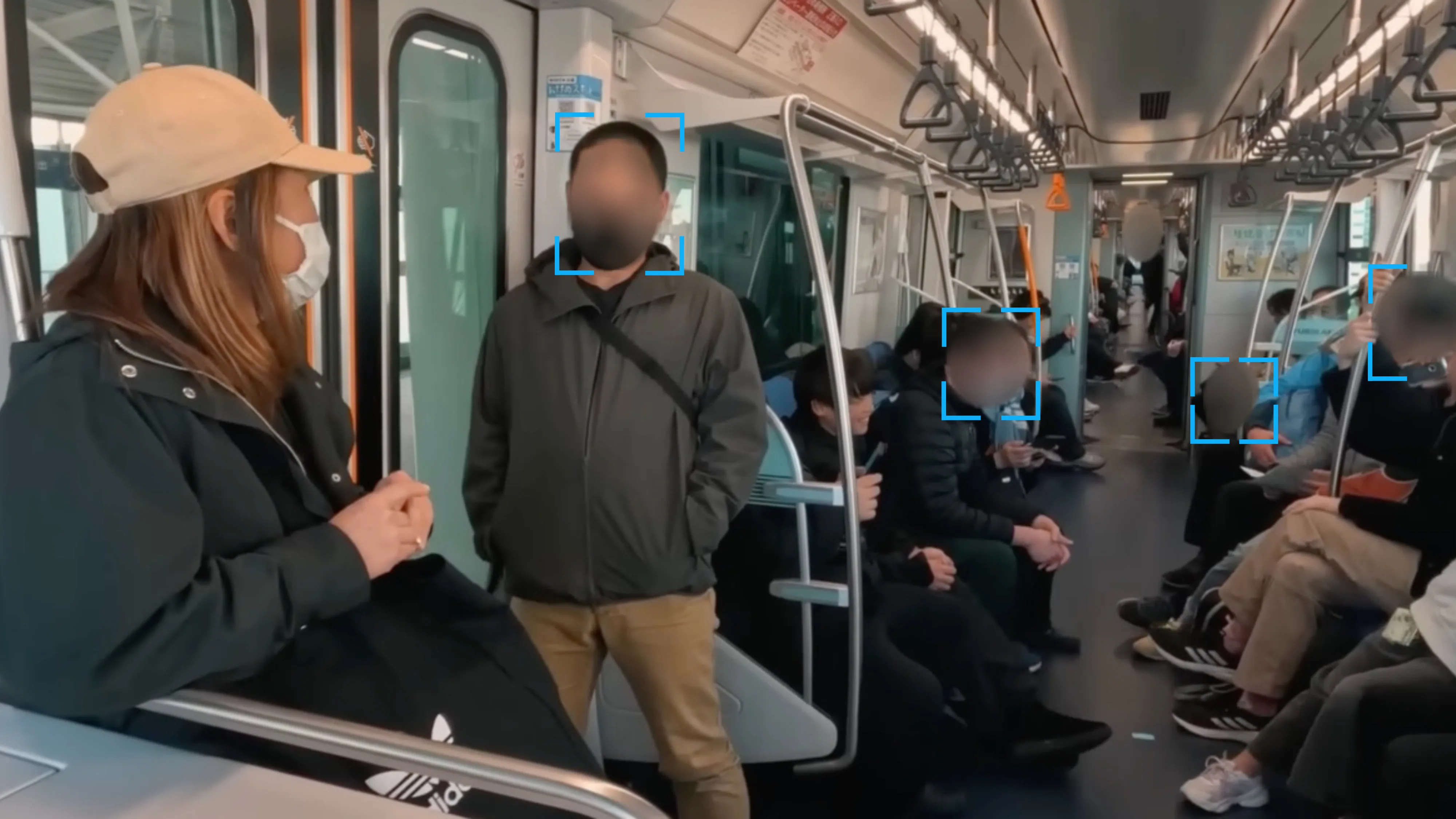
That difference changes the workflow. Instead of opening a general editor, drawing masks by hand, and hoping nothing identifiable slips through, you start with detection, review the flagged faces, plates, screens, or other sensitive elements, correct misses, and then export the redacted file. For legal review, journalism, investigations, and internal security footage, that order is usually the safer choice.
Where Blurit stands out
The strongest part of Blurit is not the blur effect itself. It is the privacy and handling model around the blur.
The platform uses browser-side detection during analysis, plus EU hosting, TLS encryption, ISO 27001 cloud infrastructure, optional Ephemeral mode for immediate deletion, support for files up to 10 GB, parallel processing, and export up to 4K. Those details matter for teams that cannot treat anonymization like a casual creator edit. A web app can be a risk if the vendor is vague about storage and processing. In this case, the security posture is part of the product decision.
Blur quality also depends on the same segmentation and subject-detection progress that has improved adjacent editing categories. The global AI Background Removal market reached USD 468 million in 2024 and is projected to grow at a 21.7% CAGR through 2033, according to DataIntelo's AI Background Removal market report.
Practical rule: If a viewer could identify a person, location, vehicle, screen, or document from the background, use a tool built for redaction and review, not one built mainly for aesthetics.
There is also a practical platform advantage. Browser access is useful for teams that do not want another desktop install, another editing seat, or a machine-specific workflow just to anonymize footage. That is a real time-saver for distributed teams and non-editors who still need a controlled result.
Best use cases and trade-offs
Blurit makes the most sense for:
- Legal and compliance work: Redacting faces, license plates, screens, and documents with review before export.
- Newsroom turnaround: Running fast detection first, then checking edge cases manually.
- Security footage processing: Handling large files without building a full edit project in an NLE.
- Product and engineering teams: Using the REST API or edge deployment inside a larger anonymization pipeline.
The trade-off is straightforward. If you need a fully offline desktop tool, look elsewhere. If the shot is crowded, underexposed, or full of occlusions, expect manual cleanup before delivery. That is normal with AI-assisted detection, and it is exactly why review controls matter.
For apps to blur background, Blurit is the strongest pick when privacy, auditability, and speed matter more than creative styling.
2. Adobe Premiere Pro
Adobe Premiere Pro is the practical middle ground for editors who live on a timeline and need background blur inside the same project they're already cutting.
It isn't a one-click "blur the background" app in the way creator tools market themselves. That's also why it's useful. You get blur effects, masks, feathering, object tracking, and the ability to adjust the result shot by shot instead of accepting whatever an automated tool decided.
Why editors keep using it
For moving subjects, Premiere's built-in masking and tracking are usually enough to handle interviews, walk-and-talks, and social clips where the background needs to soften without turning into a sloppy halo around the subject.
The workflow is straightforward:
- Apply a blur effect: Gaussian Blur is the usual starting point, though directional or camera-style blur can work better for specific motion.
- Mask the area: Invert the mask if you want the subject sharp and the background blurred.
- Track the motion: Let the mask follow the subject, then fix drift manually where needed.
That last part is the trade-off. Premiere saves time compared with fully manual frame-by-frame work, but it still expects an editor to watch the result. Hair, transparent objects, and fast lateral movement can break the illusion quickly.
Don't trust the first auto-track pass. Scrub the whole clip, especially turns, hand gestures, and edge crossings.
Where it works best
Premiere makes sense for:
- Talking head videos
- Branded social edits
- Documentary interviews
- Multi-format delivery where blur is one step in a larger post workflow
It's less appealing if you only need to anonymize a single clip fast. The blur workflow is still manual enough that dedicated privacy tools beat it on speed for redaction work. It also requires a subscription, so it's hard to justify if background blur is your only need.
Use Premiere when editing control matters more than one-click convenience.
3. Adobe After Effects
Adobe After Effects is where to go when the background blur has to survive scrutiny. If Premiere is the efficient editor's option, After Effects is the compositing specialist's option.
This is the tool for shots that fight back. Hair detail. Motion blur. Uneven lighting. Subjects crossing foreground objects. Those are the situations where "AI blur background" tools start to look synthetic.
Best for difficult edges
The key advantage is subject separation. With Roto Brush and a deeper masking and compositing toolkit, After Effects gives you far more control over the matte before you blur anything.
A practical workflow usually looks like this:
- Isolate the subject first: Build the matte before touching the blur amount.
- Duplicate or separate layers: Keep the subject independent from the background.
- Apply Lens Blur or Gaussian Blur: Choose based on whether you want realism or speed.
- Refine edge contamination: Clean fringing before export.
This takes longer than a creator app. It should. You're trading convenience for control.
Trade-offs
After Effects is powerful, but it's not forgiving. If you don't already understand masks, layer order, feathering, and how blur interacts with edges, this won't be the fastest route. It also works best when paired with Premiere rather than used as a general editing environment on its own.
What it does better than almost anything else is rescue tricky footage. If a subject moves fast or the background has a lot of visual overlap, the extra effort usually pays off in a more believable result.
For apps to blur background, After Effects isn't the quick answer. It's the high-control answer.
4. DaVinci Resolve
DaVinci Resolve is the strongest option if you want serious desktop capability without immediately committing to Adobe's ecosystem.
It's especially good for editors who think in terms of finishing, not just cutting. Background blur in Resolve can happen through edit-page tools, color-page isolation, or Fusion if you need to get deep. That flexibility is the whole appeal.
A good fit for talking heads and docs
Resolve handles selective background blur well on interviews and documentary footage because it gives you multiple ways to isolate the subject.
Magic Mask is the fast route when available. Defocus Background and depth-based effects are useful when the subject is clearly separated. If the shot is more complicated, you can still build the result more manually.
A few strong use cases:
- Interview setups with visible room clutter
- Client videos where the background needs polish, not full redaction
- Color-heavy projects where blur and grade need to match
The free tier is also a genuine advantage. You can do a lot before paying, which makes Resolve unusually attractive for small teams and freelancers.
What to watch for
Some of the best AI-assisted isolation tools sit in the Studio version, not the free one. That matters if your main reason for choosing Resolve is fast subject separation.
If you already grade in Resolve, blur there too. Round-tripping to another app just to soften the background usually creates more work than it saves.
The other caution is complexity. Resolve is broad. Editors who only want a fast blur effect can get lost bouncing between Edit, Color, and Fusion pages. But if you're willing to learn where each tool belongs, it's one of the most capable choices on this list.
5. Final Cut Pro
Final Cut Pro is the fast Mac editor's answer to background blur. It doesn't try to be a compositing lab first. It tries to keep you moving.
That's valuable when you're editing interviews, product clips, or creator content on a tight deadline and don't want the blur job to become its own project.
Fastest when you stay in the Apple workflow
Final Cut Pro works well for tracked blur because its object tracking and mask-based adjustments are approachable. You can connect a shape mask to tracked movement, apply blur selectively, and get to a clean result without touching a more advanced VFX app.
On Apple Silicon, that speed advantage becomes very practical. You can audition blur strength, feathering, and placement quickly enough that the edit stays fluid.
It's a strong choice for:
- Mac-based creators cutting frequent social video
- Agencies producing recurring interview content
- Editors who need blur but don't want full compositing overhead
Limits worth knowing
Final Cut Pro is only relevant if you're already in Apple's world. That sounds obvious, but it changes team decisions. Mixed-platform shops usually avoid workflows that depend on macOS-only software unless there's a clear reason.
The other limitation is depth. You can absolutely build polished blur effects in Final Cut, but once the shot gets complicated, you'll feel the ceiling sooner than you would in After Effects.
If your job is to turn around polished Mac-based edits fast, Final Cut Pro is one of the most efficient apps to blur background without slowing down the rest of post.
Try AI background blurring on your own footage
Upload a clip or photo, let Blurit detect sensitive areas and export — no credit card to get started.
Open Blurit Studio6. CapCut
CapCut is the app to reach for when a social clip needs a blurred background in minutes, not after a full post workflow. If the job is a Reel, TikTok, YouTube Short, or lightweight promo, its subject detection is fast enough that you can go from raw clip to export without building masks by hand.
That speed matters more than people admit.
For mobile and creator-first work, CapCut covers a useful middle ground across web, desktop, and phone. You can start an edit on one device, finish on another, and keep the blur effect consistent enough for short-form delivery.
CapCut works best in a few specific situations:
- Fast-turn social posts
- Talking-head clips with clear subject separation
- Product videos that need a softer, less distracting background
- Mobile-first editing where desktop post would slow the job down
The trade-off is accuracy. Fine hair, transparent objects, motion at the edge of frame, and low-contrast scenes can break the illusion quickly. In those shots, the blur itself may look fine, but the cutout around the subject gives away the effect.
Privacy is another reason to place CapCut carefully in your workflow. For casual publishing, that may be acceptable. For client-sensitive footage, internal communications, healthcare, legal material, or any job where background blur is being used to hide identifying context, choose a desktop tool with tighter local control and more predictable masking.
CapCut earns its place because it removes friction from simple blur jobs. Use it when speed wins, the footage is clean, and the risk of imperfect edges is low.
7. Kapwing
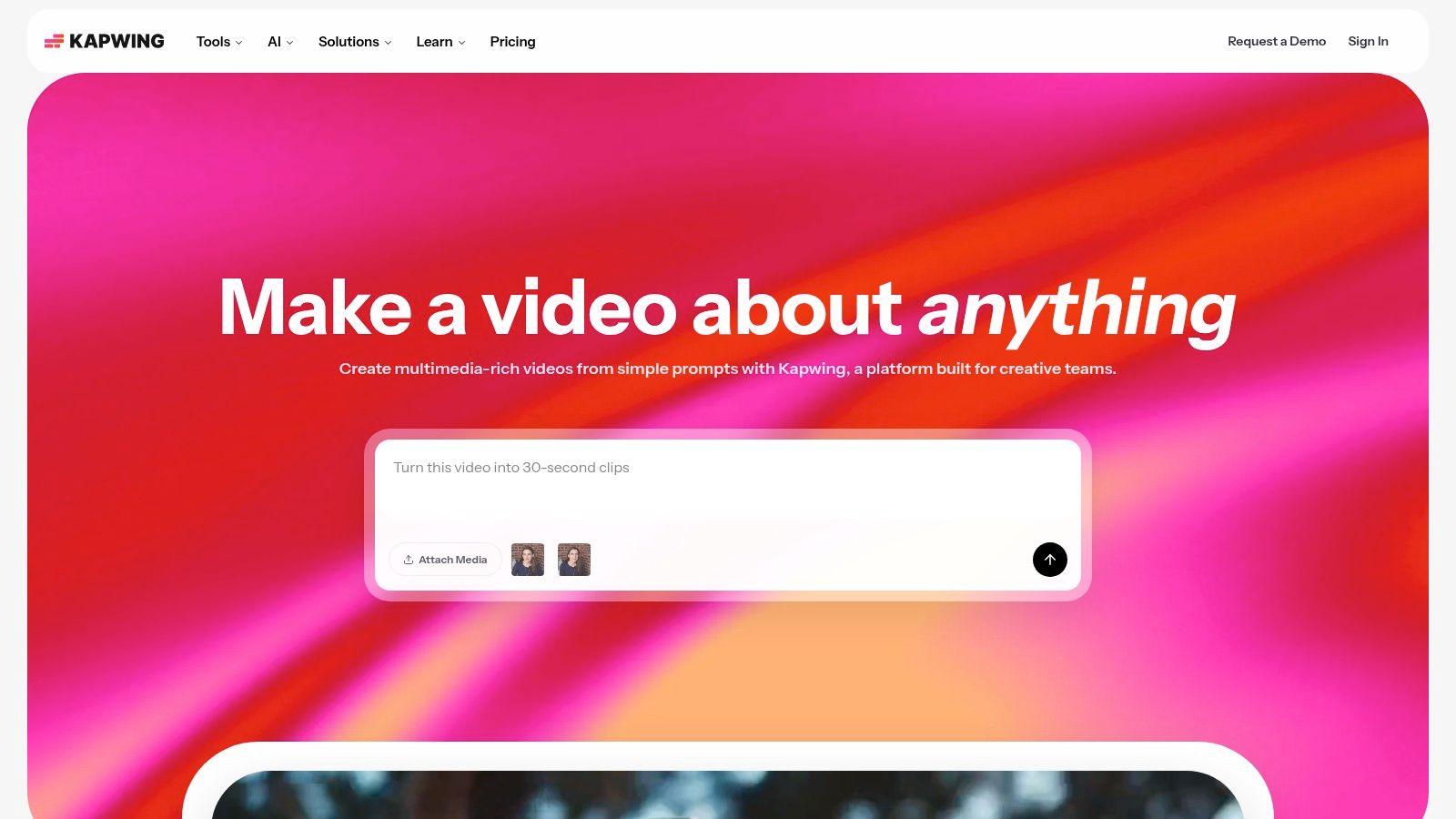
Kapwing sits in a useful middle tier between creator apps and full desktop editors. It's browser-based, collaborative, and easy to hand off between teammates.
Good for team-based online editing
Kapwing's background blur tools are a good fit for marketing teams, social managers, and small internal studios that want clean online workflows with minimal setup.
The appeal is less about extreme precision and more about operational convenience. You can blur a talking-head background, update text, swap branding, and export in one browser session.
It works best for:
- Short marketing videos
- Thumbnail and promo updates
- Collaborative review loops
- Cross-device edits without local installs
Trade-offs in real use
Kapwing is simple, but not unlimited. Longer videos and heavier AI use can push you into paid plans faster than you might expect. And while it's excellent for quick online deliverables, it isn't the tool for detailed shot repair or compliance-heavy redaction.
Kapwing works best when speed, collaboration, and browser access matter more than deep editorial control.
8. Canva
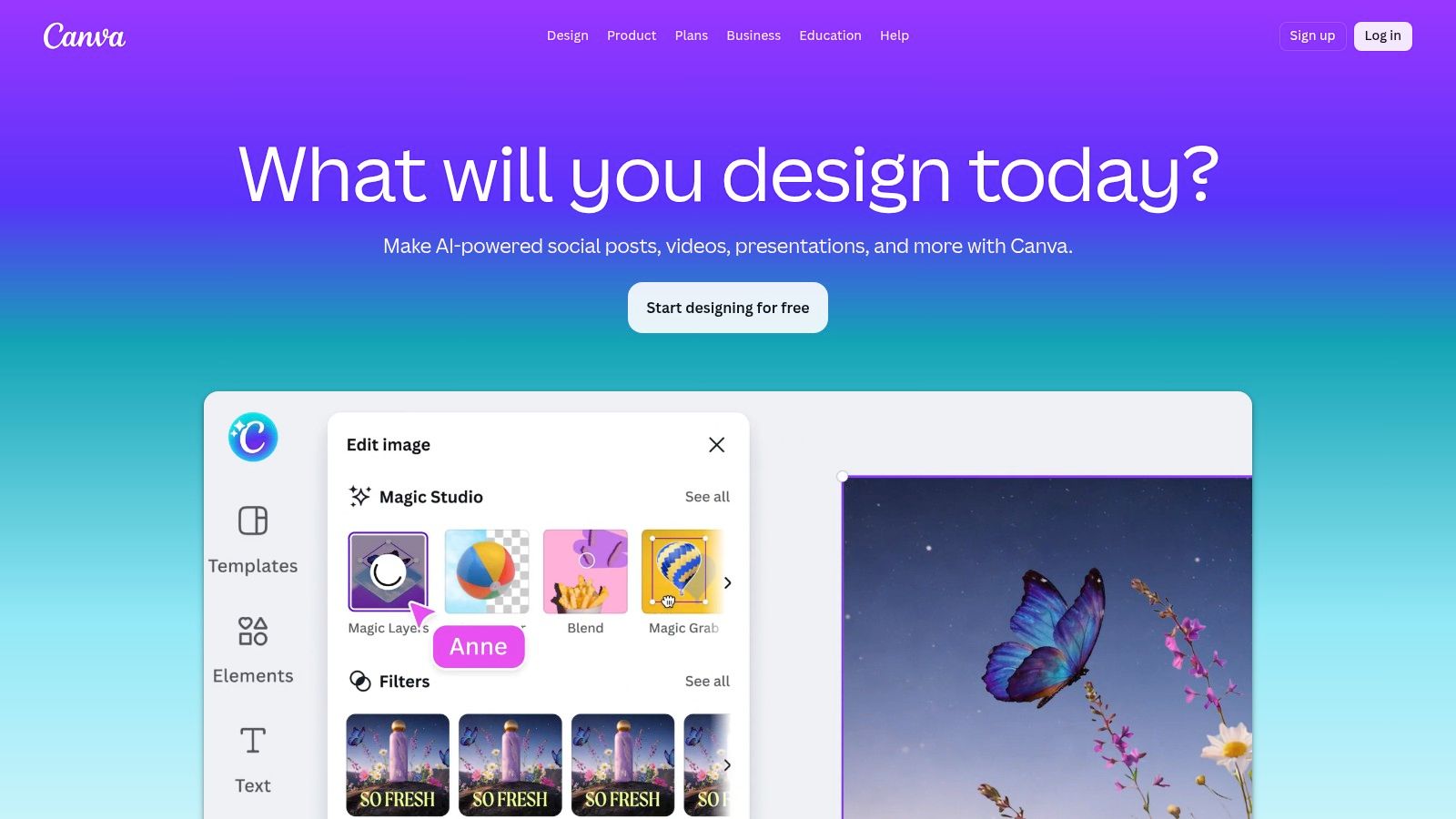
Canva is what to recommend to people who don't really want an editing app. They want a finished asset.
If the primary task is "make this promo image look cleaner" or "fix this thumbnail before posting," Canva is often enough. It hides most of the complexity and gets you from cluttered original to presentable design quickly.
Strong for marketing assets
Canva isn't the most advanced blur tool on this list. It is one of the most approachable.
For still images, its background removal and replacement workflow is often more useful than a classic blur slider. Once the subject is isolated, you can soften, replace, or rebuild the background as part of the larger design.
Canva is especially effective for:
- Thumbnails
- Sales graphics
- Simple product promos
- Social posts that need brand consistency
A soft, clean replacement background often looks more intentional than a heavy blur. If the goal is conversion, not photography realism, design usually wins.
The important limitation
Video is where Canva starts to show boundaries. It can handle simpler subject isolation and background treatments, but editors who need precise motion tracking or detailed control will hit the limits quickly.
Use Canva when the blur is part of packaging the message, not the main technical challenge.
9. Adobe Photoshop
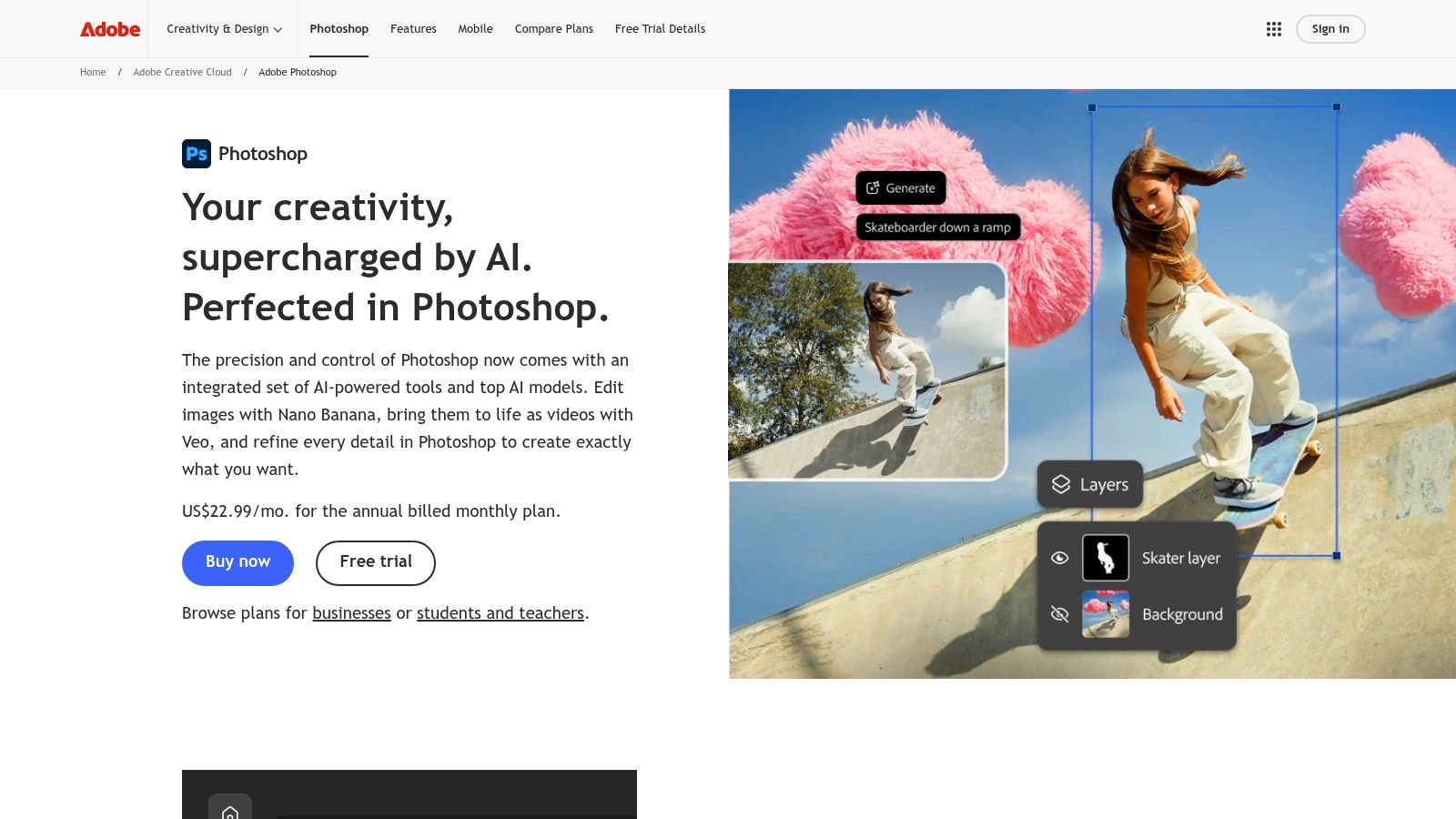
Adobe Photoshop remains one of the best answers for still images. If the assignment is a portrait, product shot, or promotional still, Photoshop gives you far more believable control than most mobile blur apps.
Best when realism matters
Photoshop's Select Subject and Blur Gallery tools make it possible to create background blur that looks optical instead of obviously synthetic, especially when you use masks carefully and avoid overdoing the effect.
The strongest blur options tend to be:
- Lens Blur: Best when you want a more photographic feel.
- Field Blur: Useful for controlling intensity across different zones.
- Iris Blur: Good for drawing attention around a central subject.
Photoshop also plays nicely with RAW workflows, which matters for commercial stills. If the source image needs exposure and color correction before the blur, keeping everything in one ecosystem is efficient.
When not to use it
Photoshop is a poor choice if you need fast batch anonymization or moving video. It's also more manual than many casual users expect. Select Subject is useful, but tricky edges can still demand hands-on mask work.
For still-image professionals, Photoshop stays near the top of the list for a reason. It gives you control over the thing that makes blur believable: the selection.
Background-Blur Apps Comparison
| Tool | Best for | Key advantage | Price |
|---|---|---|---|
| Blurit | Privacy, compliance, newsrooms, security | AI detection + browser-side processing, EU hosting, ISO 27001, Ephemeral mode, REST API, 4K export | Free tier, pay-as-you-go |
| Premiere Pro | Editors already on a timeline | Masks + tracking inside an NLE workflow | Subscription |
| After Effects | Difficult edges, VFX-level precision | Roto Brush 3, deep compositing control | Subscription |
| DaVinci Resolve | Colorists, documentaries, freelancers | Magic Mask + free tier with pro tools | Free / Studio paid |
| Final Cut Pro | Fast Mac-based edits | Real-time tracking on Apple Silicon | One-time purchase |
| CapCut | Social-first short clips | One-click blur, cross-device editing | Free / Pro varies |
| Kapwing | Team collaboration in browser | No install, shared review workflows | Free tier + plans |
| Canva | Marketing assets, thumbnails | Design-first BG removal + templates | Free / Pro |
| Photoshop | Still images, commercial retouching | Blur Gallery (Lens/Field/Iris) + precise masks | Subscription |
The Right Blur for the Right Job
A social editor cutting a Reel on a phone has a different job from a legal reviewer obscuring faces, screens, and street numbers before footage leaves the company. Both need background blur. The app choice should follow the risk, not just the interface.
Start with two practical questions. How fast does this need to go out? What happens if the blur misses something important? For a same-day post, speed and convenience usually matter most. For legal review, internal investigations, journalism, healthcare, or client-sensitive footage, the better choice is the tool that gives tighter control over what gets hidden, how files are handled, and how easy it is to verify coverage before export.
Platform matters more than feature lists suggest. Web tools and mobile apps are usually the fastest route for quick publishing. CapCut is the obvious pick for short-form clips when AI subject detection gets you close enough. Canva works better when the asset also needs titles, brand elements, or template-based production. Kapwing fits browser-based team workflows where review and approvals matter as much as the edit itself.
Desktop editors still win on difficult footage. Premiere Pro is the practical default for many teams because it handles blur inside a familiar timeline. Final Cut Pro is excellent on Apple hardware when speed matters and the tracking is clean. DaVinci Resolve gives editors strong masking and finishing tools without forcing a high software cost. After Effects is the tool to reach for when the shot is messy, the edges are difficult, or the blur has to follow motion with more precision than one-click tools can usually manage.
Still images are a separate decision. Photoshop gives the best control for hair, glass, product cutouts, and composites where bad masking is obvious.
Privacy changes the shortlist fast.
If a frame includes faces, license plates, documents, addresses, monitors, or bystanders, the question is no longer which app makes the nicest blur. The question is which workflow reduces exposure and helps a team confirm that nothing identifiable slipped through. That is where a dedicated privacy-first option such as Blurit makes more sense than a general editor, especially when you need automatic detection, selective blur or pixelation, support for large files, and a process built around anonymization rather than aesthetics.
Use this framework:
- Choose CapCut, Canva, or Kapwing for quick publishing, lightweight edits, and browser or mobile-first workflows.
- Choose Premiere Pro, Final Cut Pro, DaVinci Resolve, or After Effects when tracking quality, masking control, and finishing flexibility matter more than turnaround time.
- Choose Photoshop for stills where precise masking and realistic blur matter.
- Choose Blurit for privacy-sensitive work, especially when background blur is part of redaction, anonymization, or compliance review.
The best app is the one that matches the consequence of a mistake. For a social post, that often means speed. For professional review, it means control, verification, and file handling you can defend.
Next step: blur backgrounds in your photos and videos without installing software — Blurit.app offers a browser-based workflow with AI detection for faces, plates, and other sensitive objects, plus blur, pixelation, and masking options for fast anonymization.